Quick download
The Quick label addition function, with opening of the camera, is available only for the mobile version
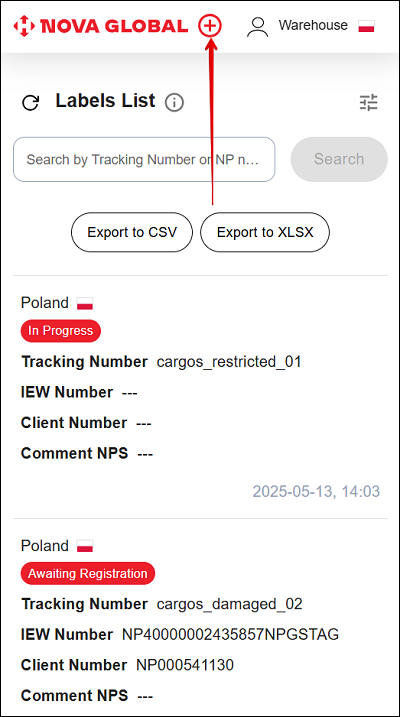
To quickly add a label, click the ⊕ icon (Додати лейбу) on the label list page in the header.
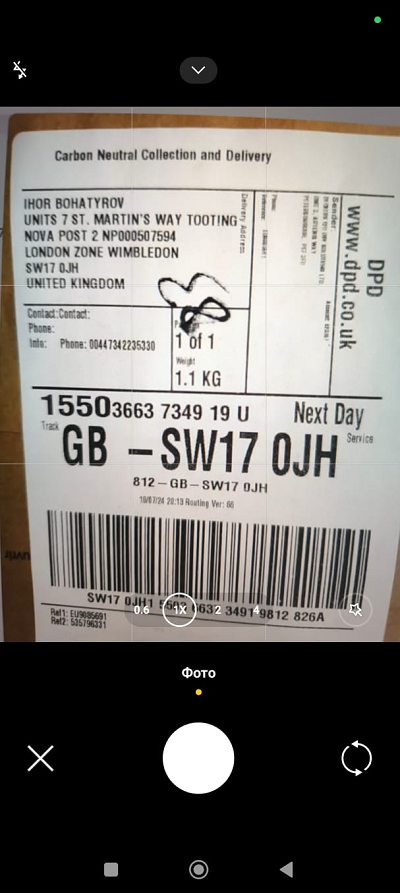
Your device's camera interface opens. Take a photo of the label.
The warehouse employee takes a photo, and the labels are recognized using the openai.com (chatGPT) API
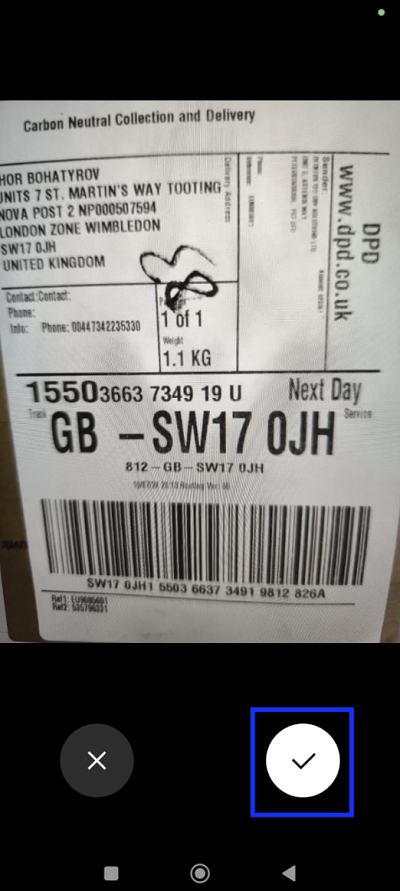
The label photo must be clear, horizontal, and readable from left to right. Click the Confirm button icon, if the label photo meets these conditions.
After you confirm the photo, the Single Parcel Label Upload page opens.
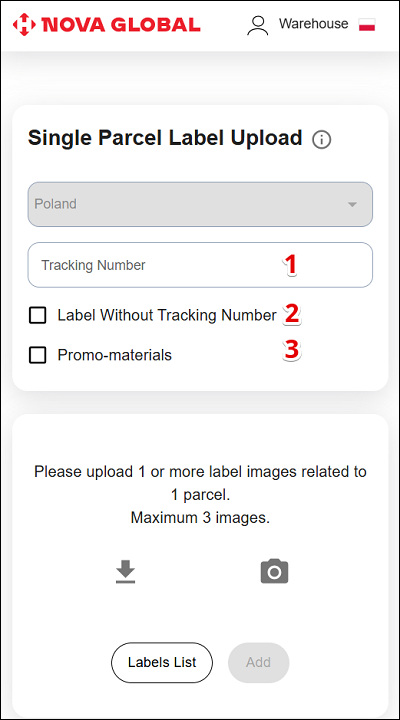
| # | Action |
|---|---|
| 1 | Scan a barcode or QR code to fill in the Tracking Number field (a Zebra scanner or a standard scanner works) |
| 2 | If the code is missing or damaged, select the Label Without Tracking Number checkbox. SML generates the Tracking Number automatically |
| 3 | Select the Promo-materials checkbox to find envelopes among other parcels |
If the form shows the Storage Cell field, fill it in.
Click the Add button to upload the label and TN to the SML and NPS systems.
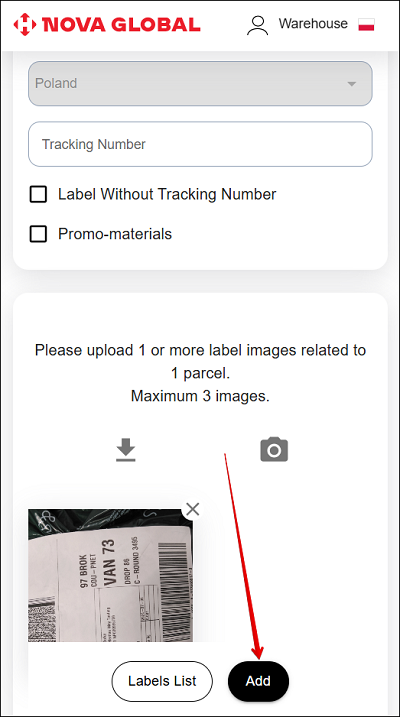
General requirements for label images
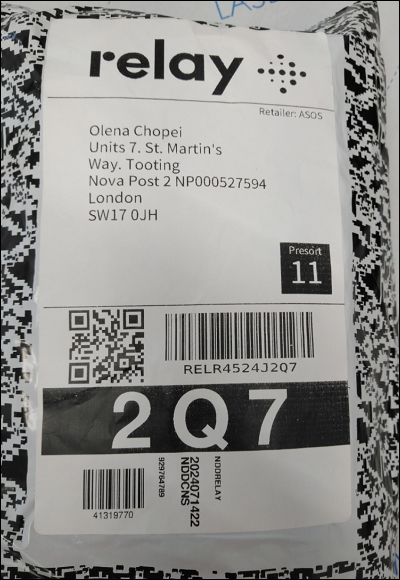
- The text on the label image (uploaded from the gallery or taken with a camera) must be clear.
- The text containing basic information about the recipient (NP- or UA-number of the client, first and last name) should be horizontal, and read from left to right.
- If the bar code or QR with the tracking number is missing or significantly damaged on the label and cannot be scanned or recognized, you must check the Label Without Tracking Number checkbox.
- If there is no scanner, but there is a correct TN value on the label, then there is no need to mark the Label Without Tracking Number checkbox. The value of the TN on the label must be clear, horizontal and readable from left to right.
An example of a valid image
Examples of invalid images
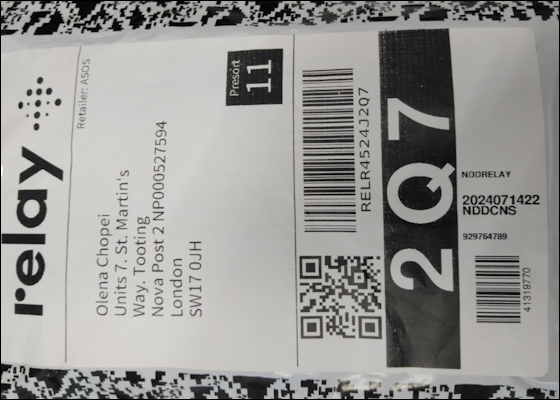
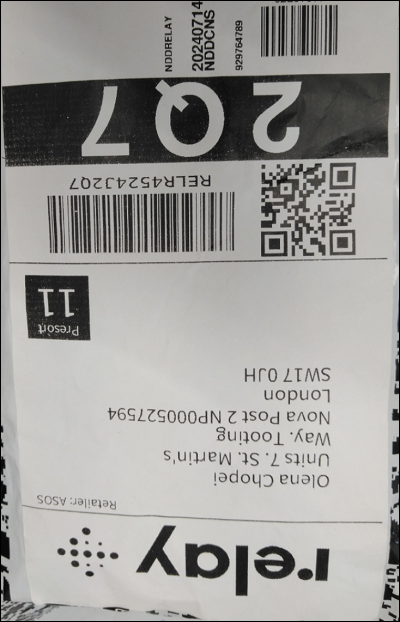
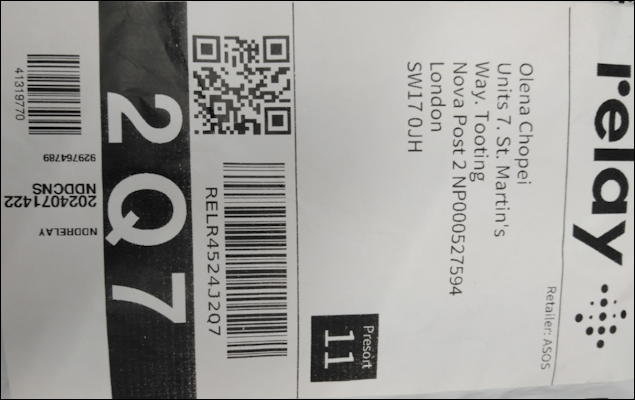
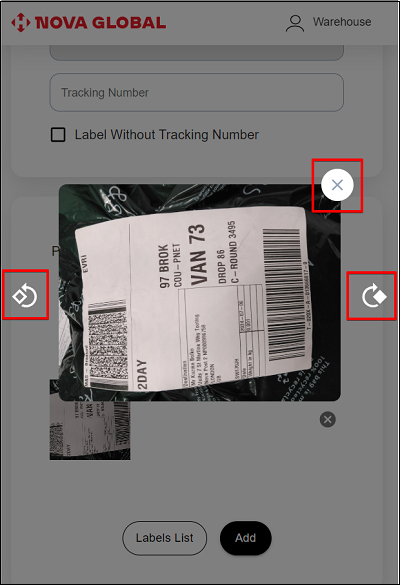
If the text on the image has the wrong orientation, tap the image preview and rotate it using the arrows. To save the changes, tap the ✕ icon.