Label card
To open the label card, click the record in the list. On mobile this is the record card; on desktop, any column of the row. You will be taken to the label card page.
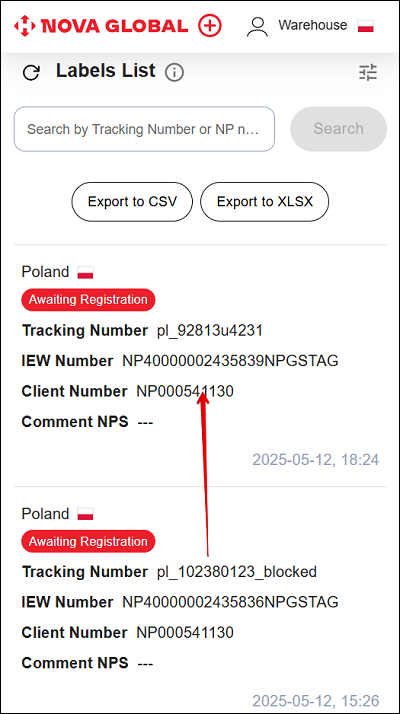
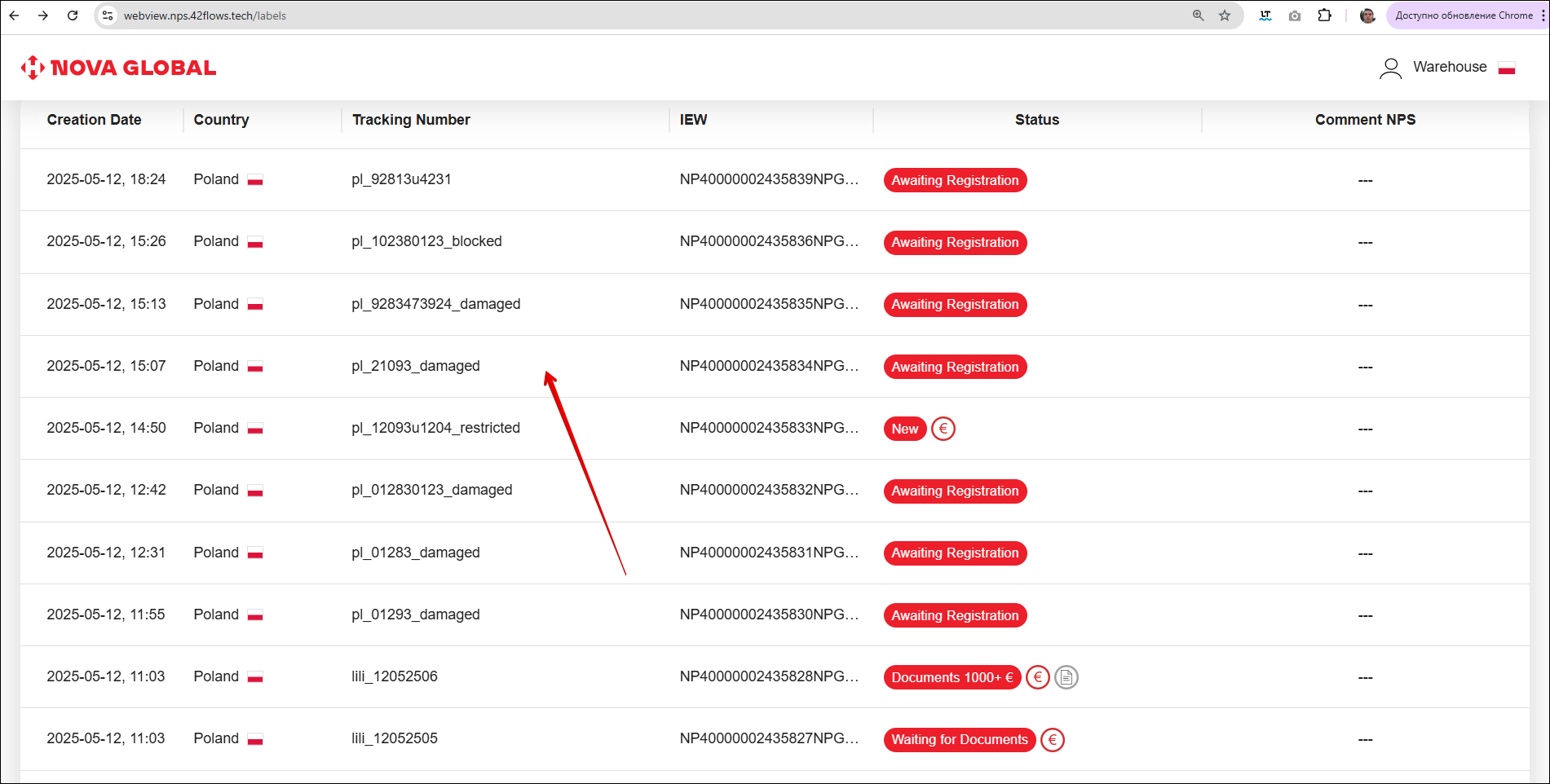
The label card displays the latest information about the label.
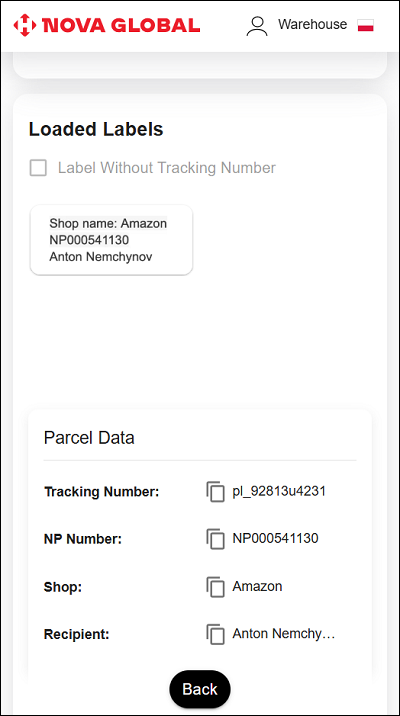
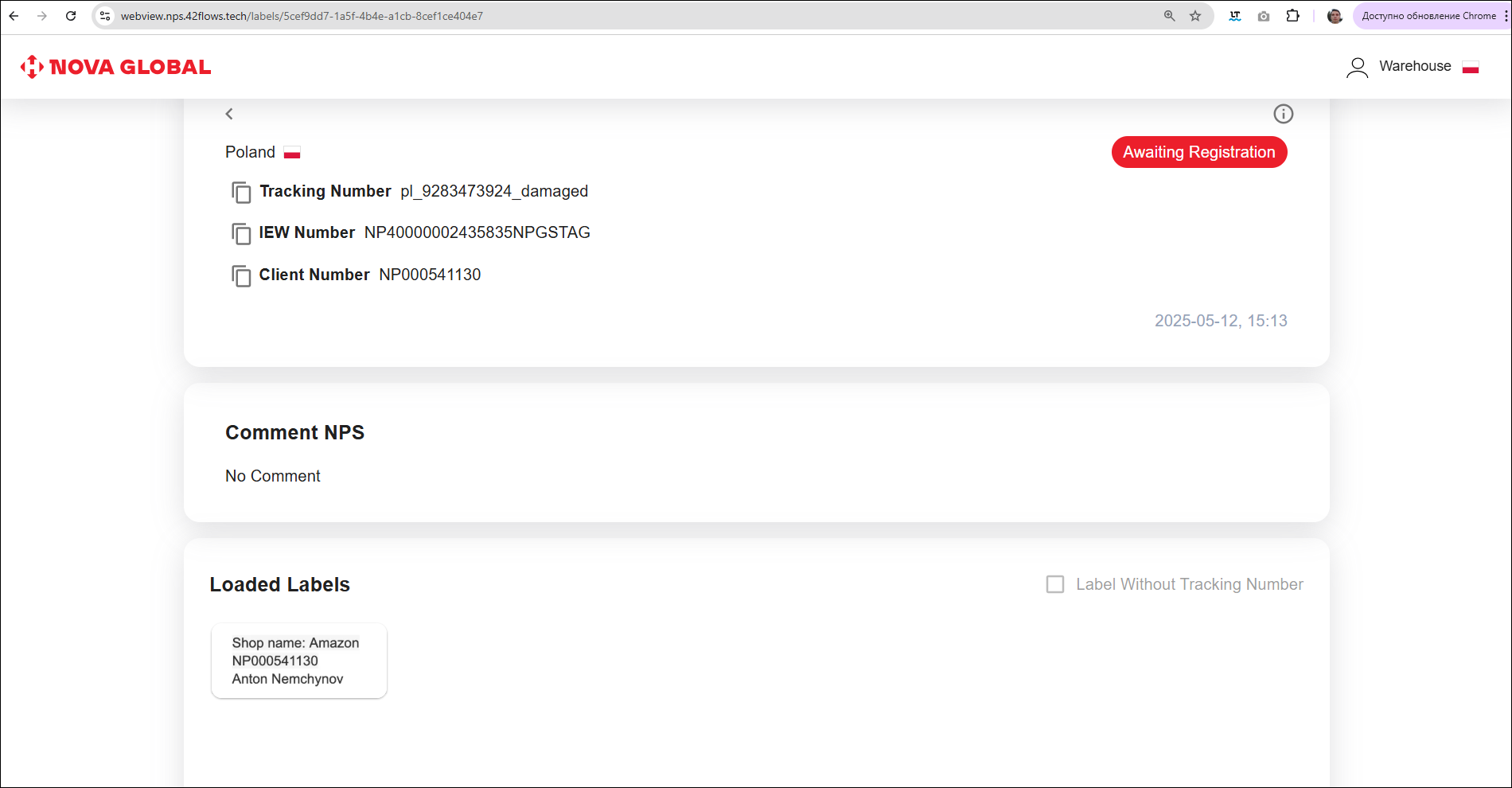
The label card page displays:
- Country of the warehouse where the scan took place;
- Status of the parcel;
- Tracking Number;
- IEW Number of the parcel;
- Customer number;
- Comment NPS. If there is no comment, No Comment is shown;
- Loaded Labels. The block contains the Label Without Tracking Number checkbox;
- Parcel Data: Tracking Number, NP Number, Shop, Recipient. If the data is present, UA Number and MD Number are also shown.
Parcel Attachments and Documents appear depending on the status.
Parcels with TN Generated, Awaiting Registration status
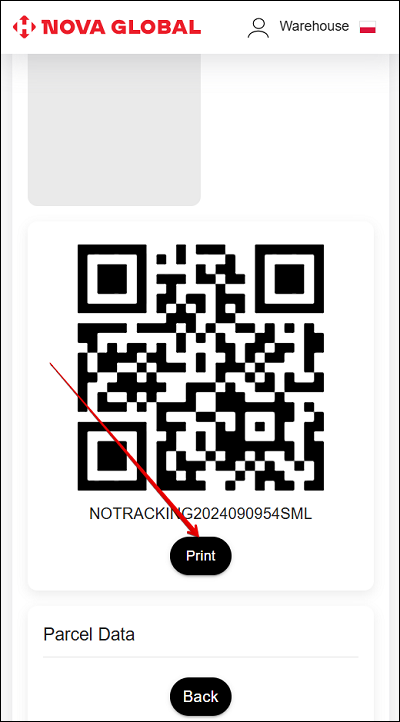
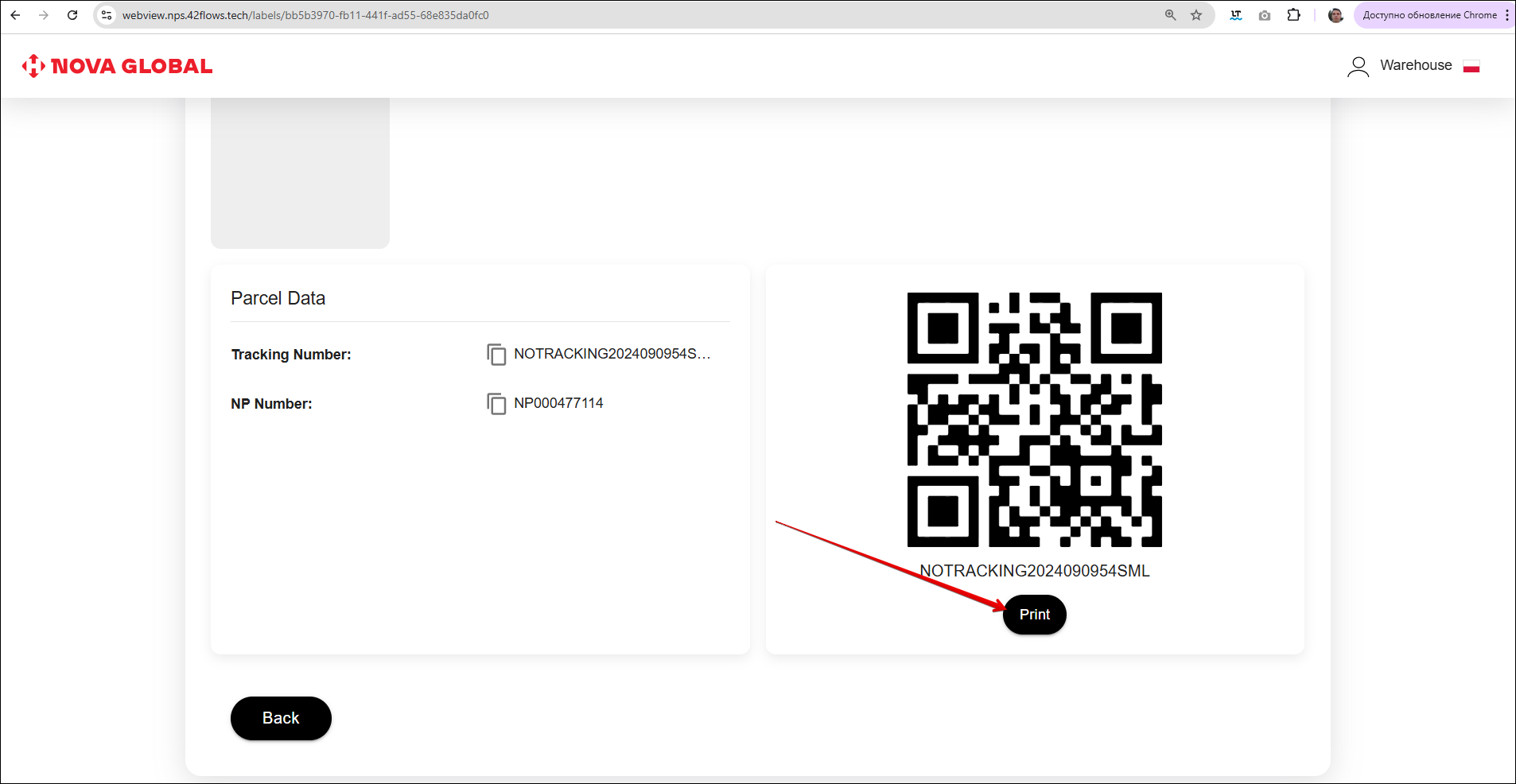
A tracking number has been generated for the parcel, the parcel with the data and the generated tracking number is saved in the NPS system and is awaiting registration by the customer in the status **TN Generated. The QR code and Track number are displayed in the parcel card. To print them, click the Print button.
Parcels with Mixed Labels Error status
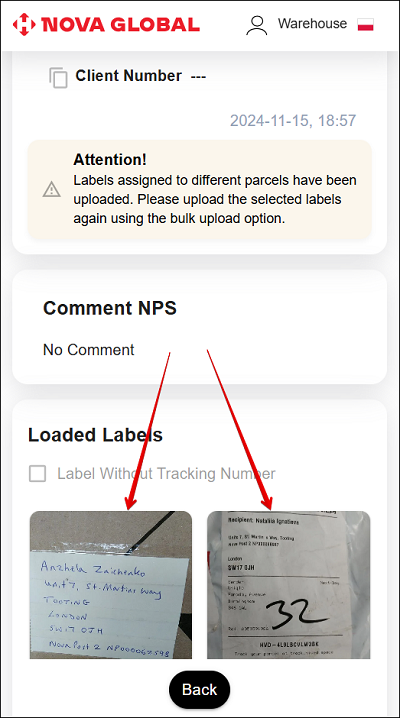
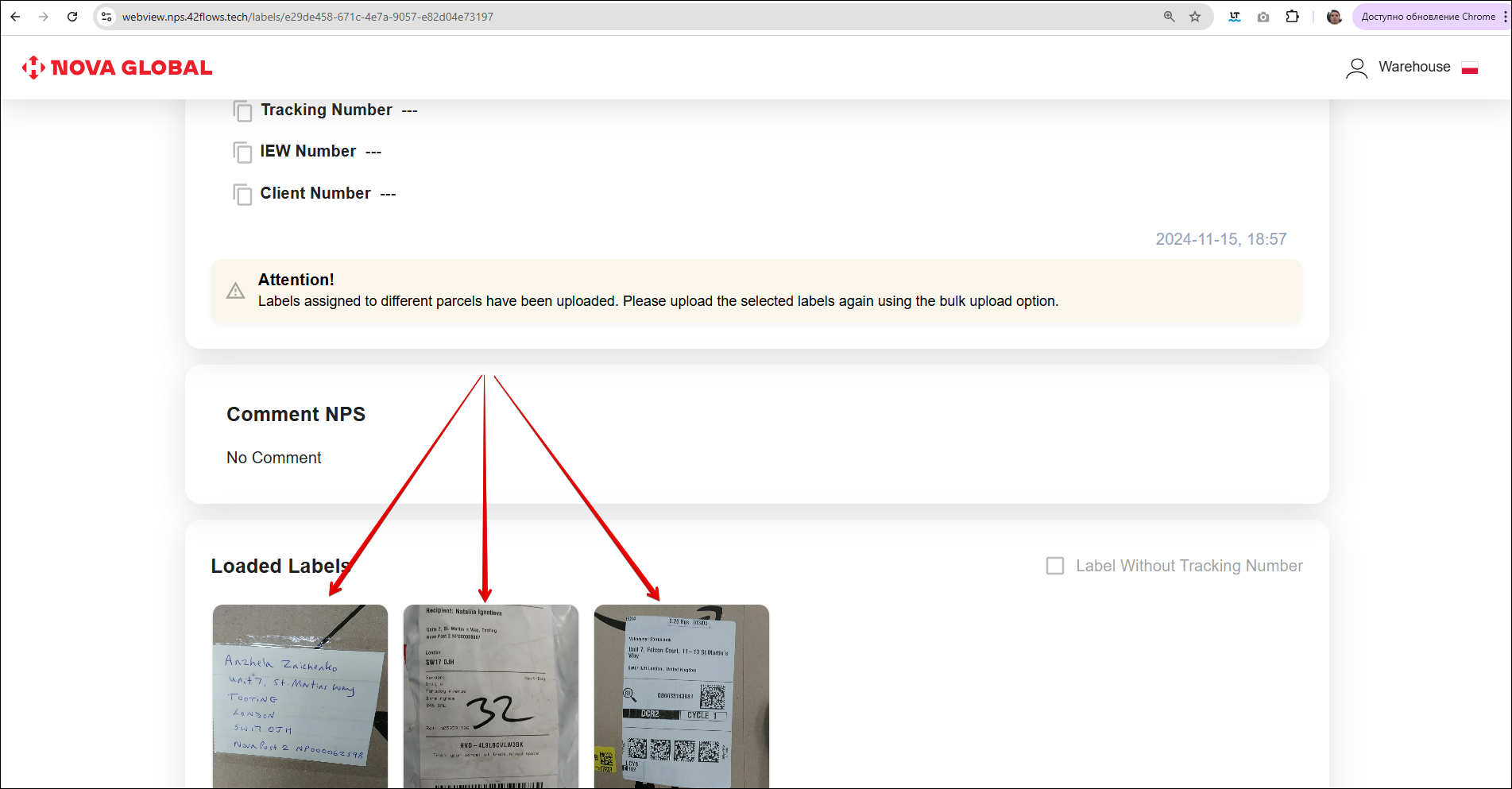
If labels from different parcels are loaded by mistake, the parcel is assigned the Mixed Labels Error status. A warning message with a description of the problem will appear in the label card.
Labels assigned to different parcels have been uploaded. Please upload the selected labels again using the bulk upload option.
Parcels with Manually Declared, Waiting for Documents, Failed Declaration and Damaged statuses
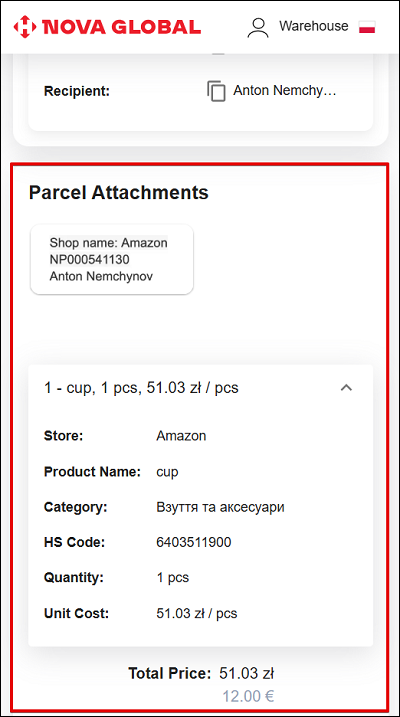
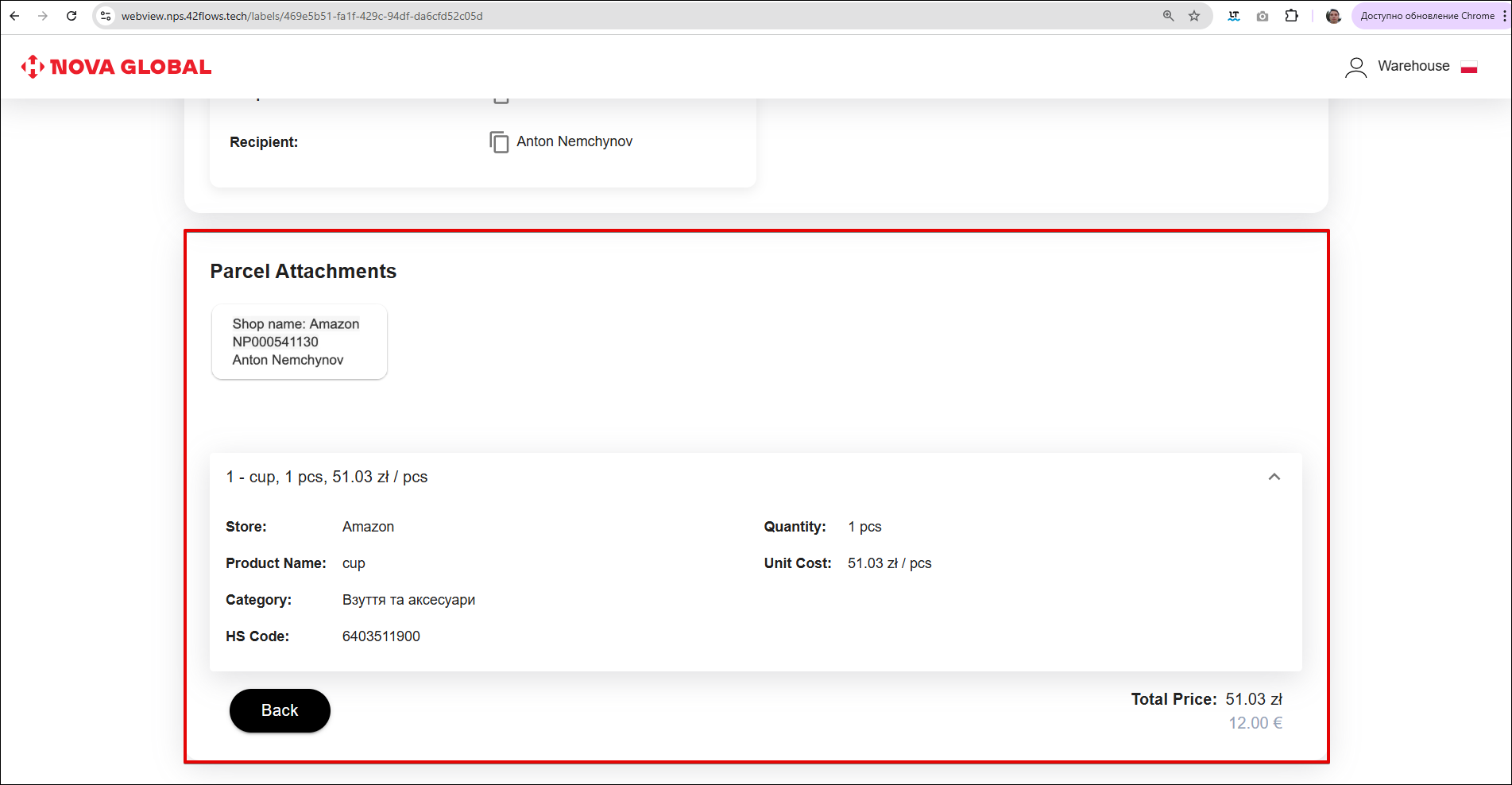
If all the necessary data on the package has been created, the parcel has been successfully registered by the warehouse and assigned the status Manually Declared, or the parcel has the status Waiting for Documents, Failed Declaration or Damaged, the Parcel Attachments section appears in the parcel card with a description of the contents.
The Parcel Attachments section displays detailed information about the product:
- Store - the name of the store;
- Product name;
- Category;
- HS-code;
- Quantity;
- Unit Cost.
Total Price is also displayed.
Parcels with Invoice Incomplete status
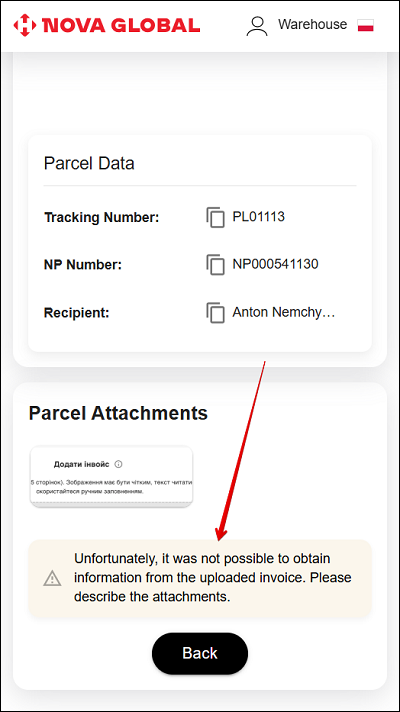
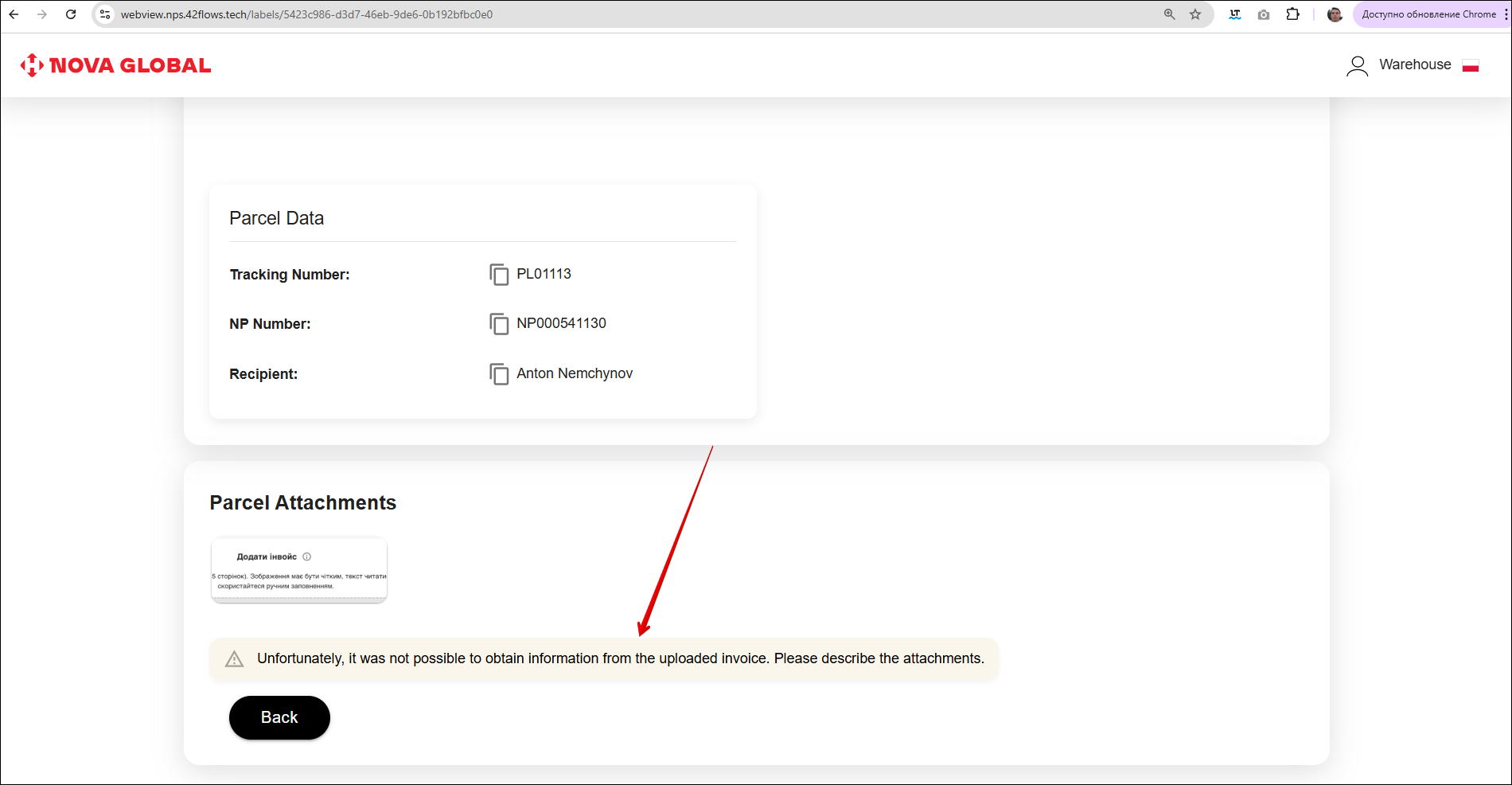
Invoice Incomplete indicates that the invoice is incomplete, so a message appears in the Parcel Attachments section.
Desktop version
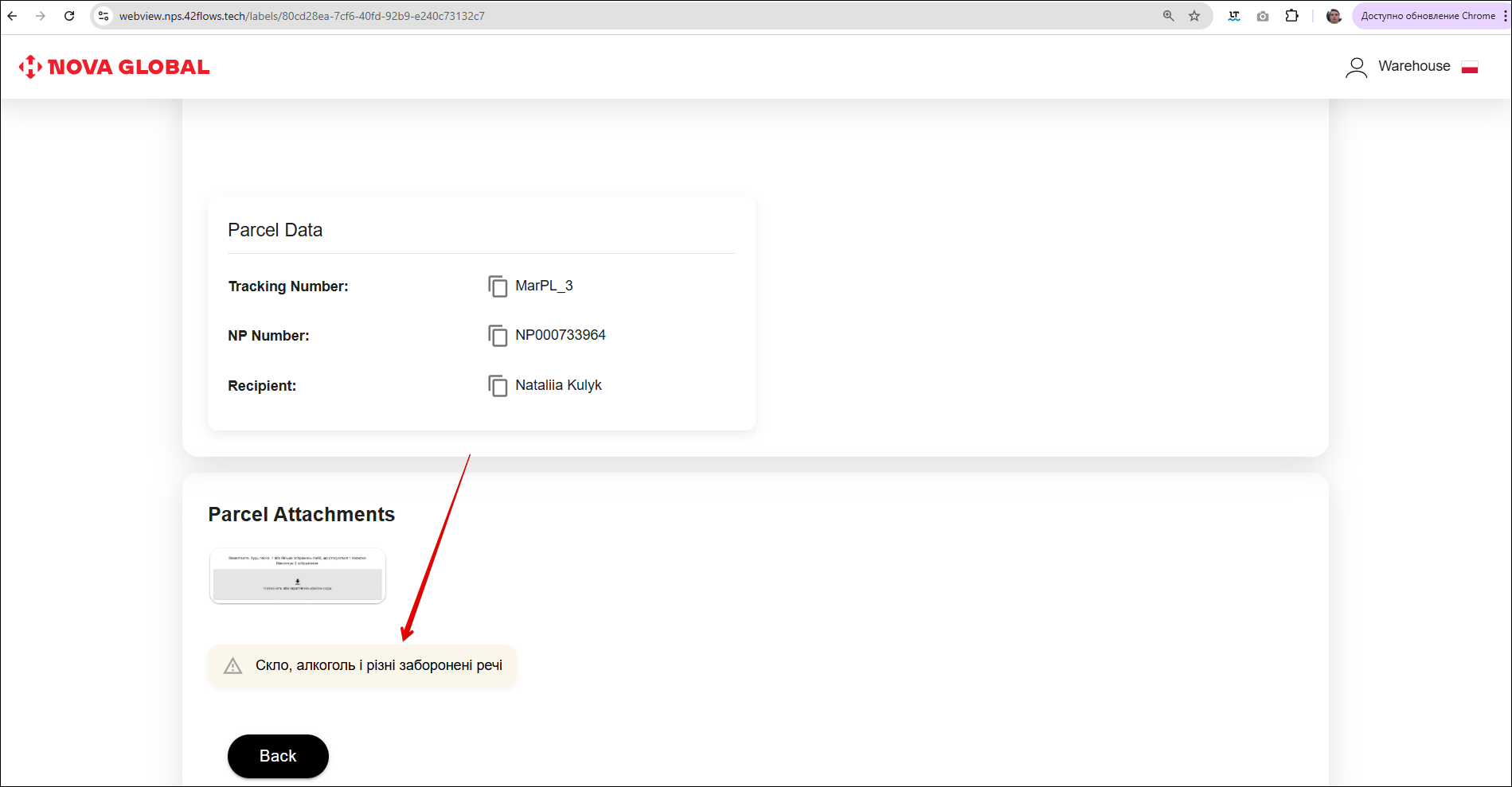
The desktop version differs from the mobile version only in the width of the screen.
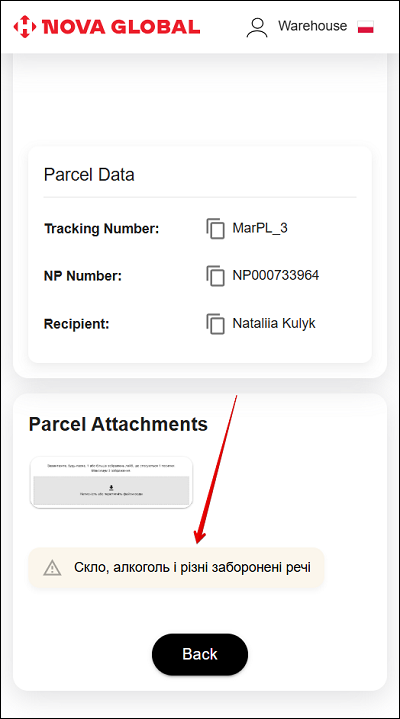
Parcels with Restricted status
In a parcel with the Restricted status, a message with the reason for this status appears in the Parcel Attachments section.
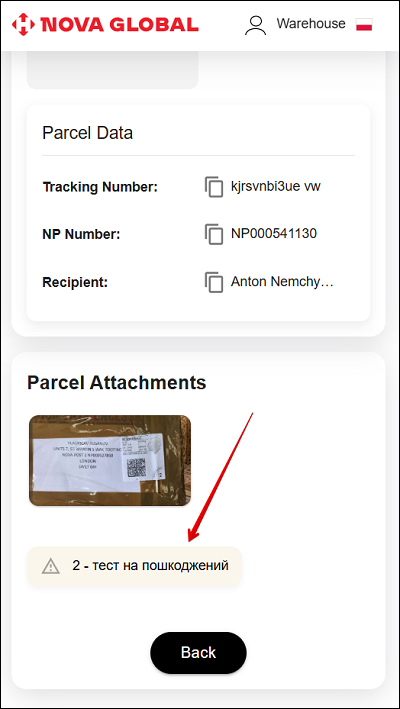
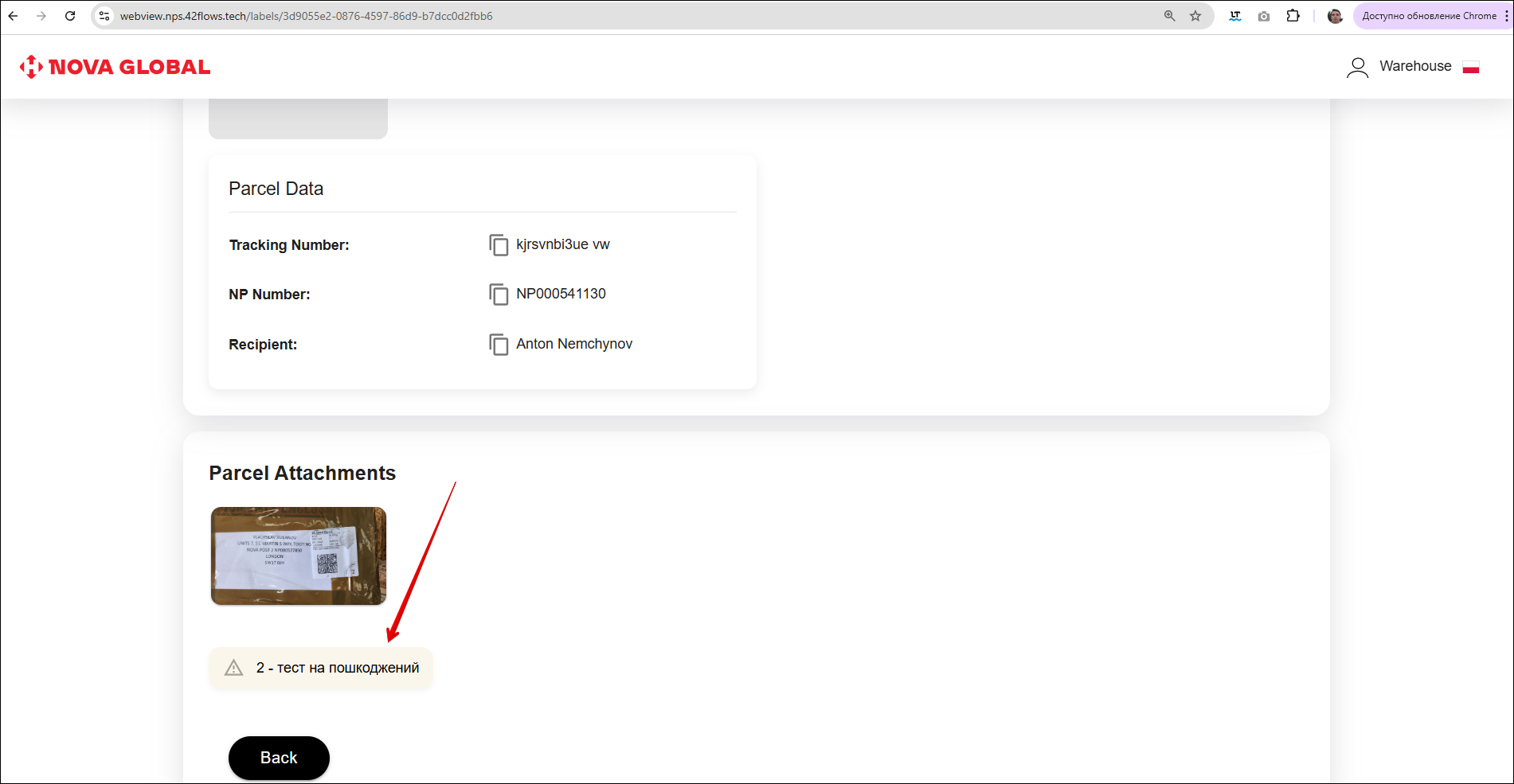
Parcels with Damaged status
This status indicates that the parcel has been damaged. Therefore, a message will appear with the reason for this status.
Parcel card for the country Poland
Parcels for Poland are separated by the value of the contents. The € icon appears in the label list next to the status:
- grey, tooltip 150-999 € — contents value from 150 to 999 euros;
- red, tooltip 1000+ € — contents value from 1000 euros. The same red icon with the 1000+ € tooltip appears when the client declared the shipment.
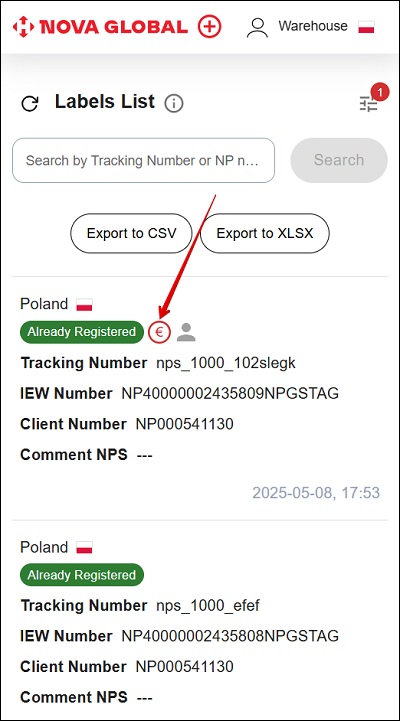
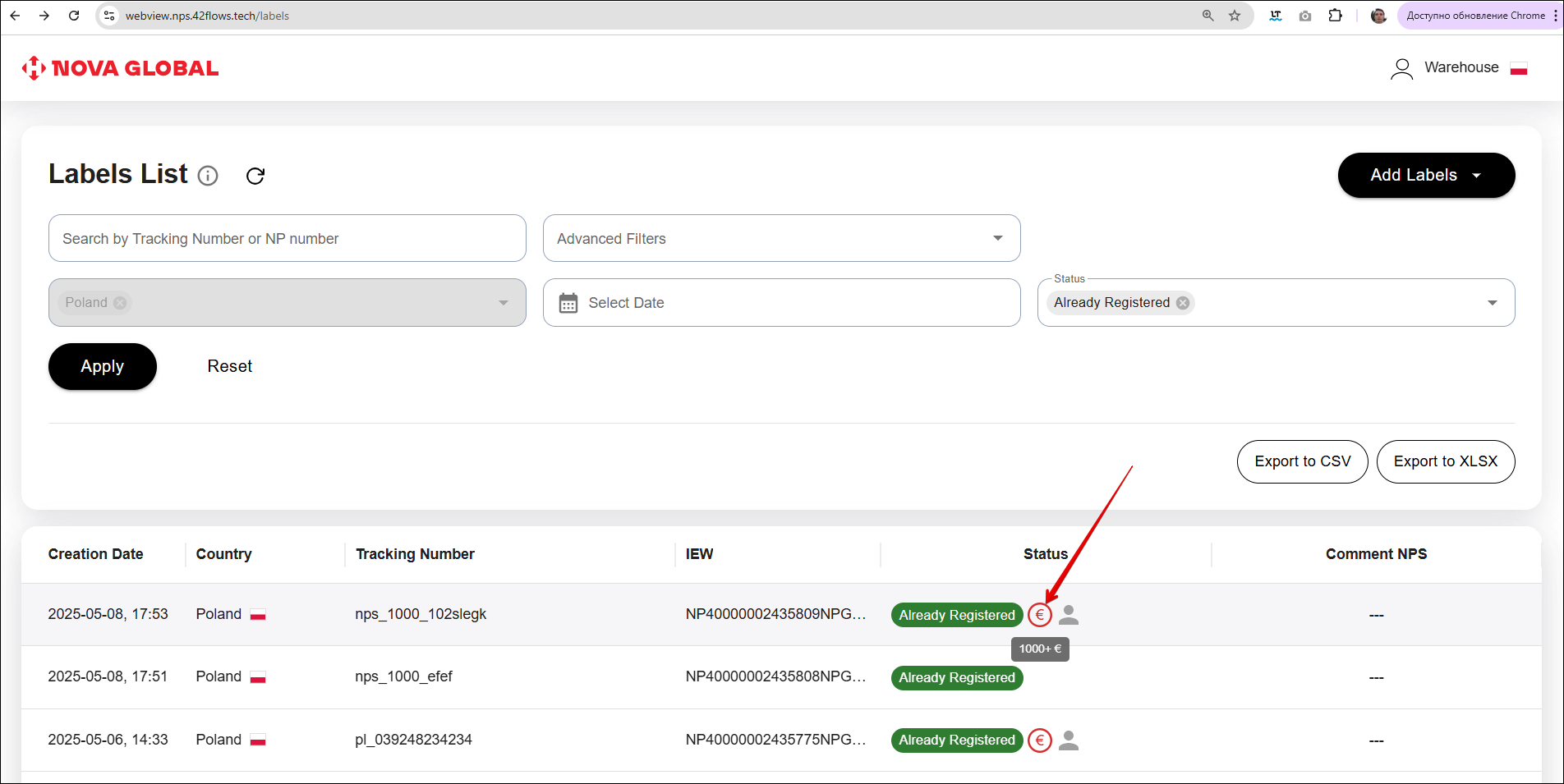
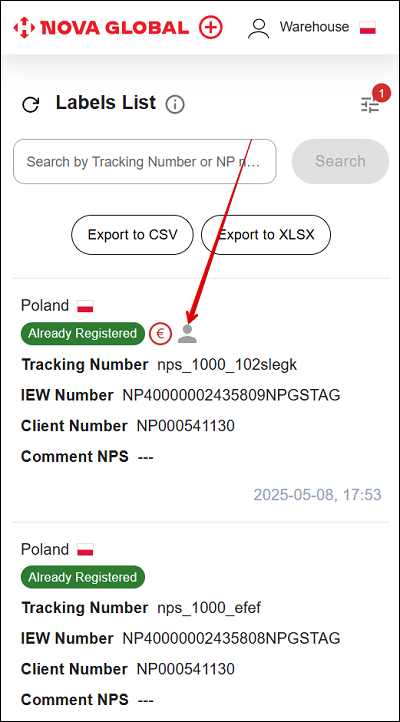
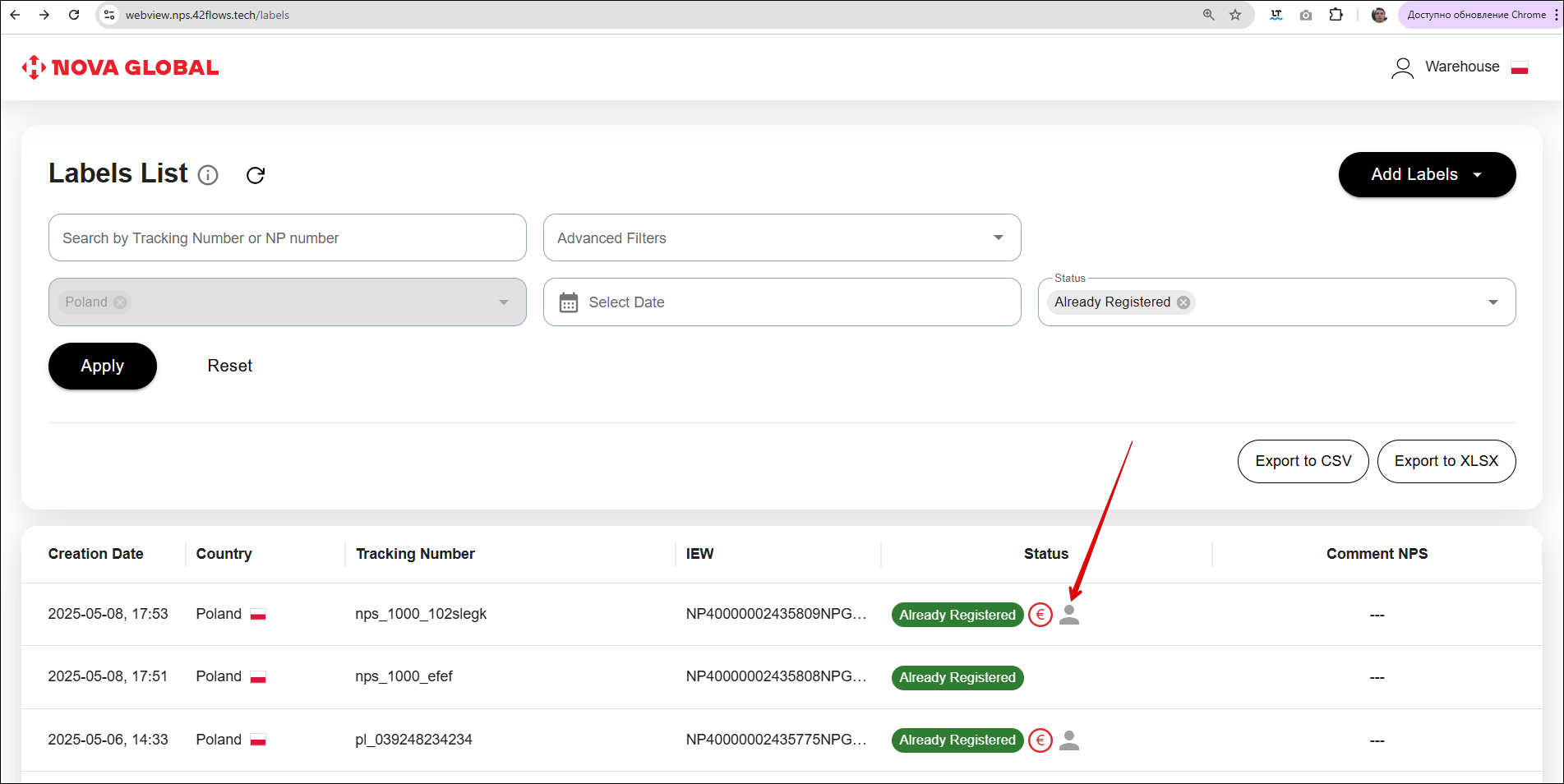
The 👤 icon has the tooltip Declared by the client. It appears next to the Already Registered or Waiting for Documents status when the client declared the shipment.
The difference between parcels from Poland is the restriction on the value of the attachment: over 1000 euros — they do not pass freely
If the parcel immediately arrives with the status Documents 1000+ €, it means that the documents are present. An additional Documents block appears in the label card.
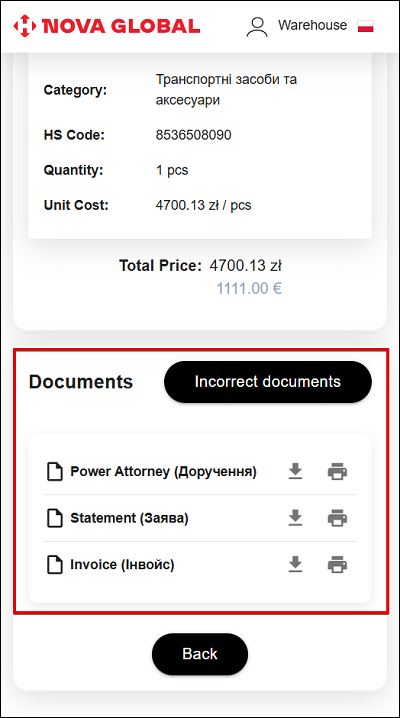
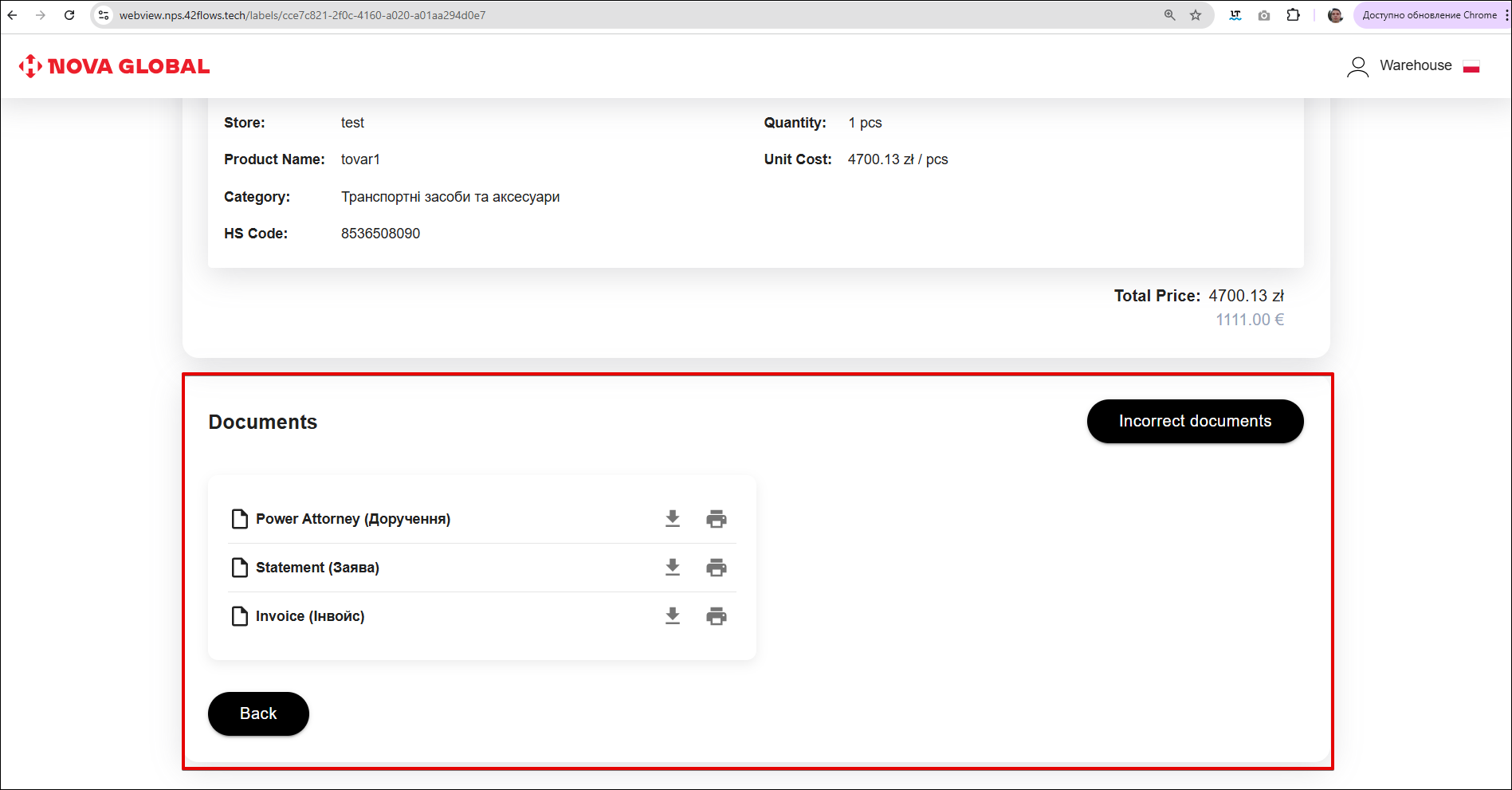
Incorrect documents
The Documents block has an Incorrect documents button. The block displays the required files:
- Power Attorney (Доручення);
- Statement (Заява);
- Invoice (Інвойс).
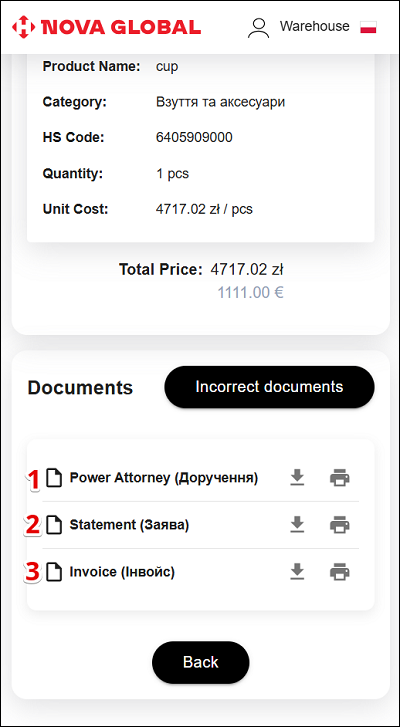
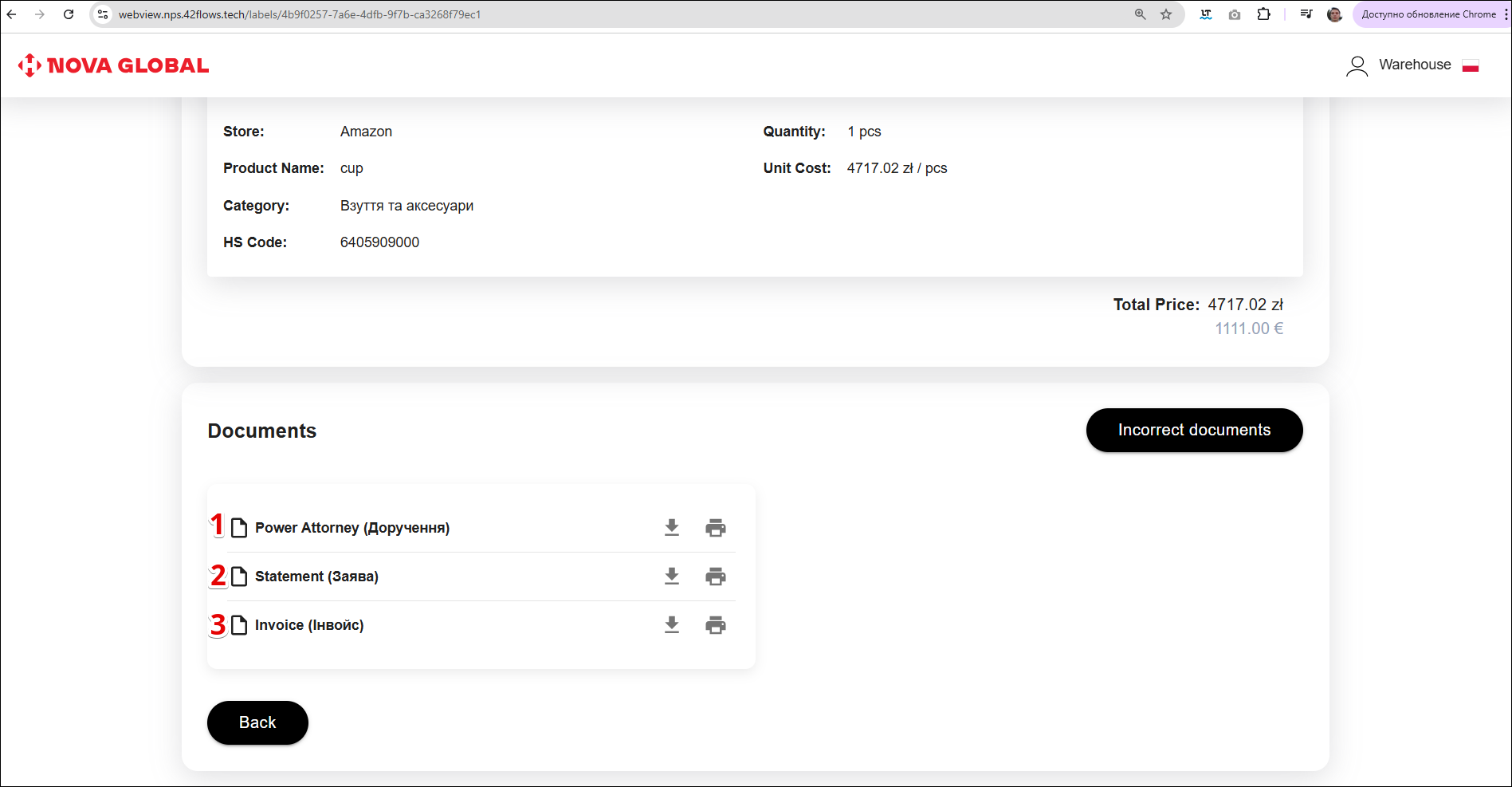
Clicking Incorrect documents opens a window:
Please indicate the incorrect documents and add a comment regarding the identified inconsistencies in the documents for information transfer to the client.
| № | Element | Action |
|---|---|---|
| 1 | Documents field | Select the incorrect documents |
| 2 | Comment field | Add a comment about the identified inconsistencies |
| 3 | Record action buttons |
An icon with the Incorrect document tooltip appears on the document that received an incorrectness comment. The client will see that this document needs to be uploaded again.
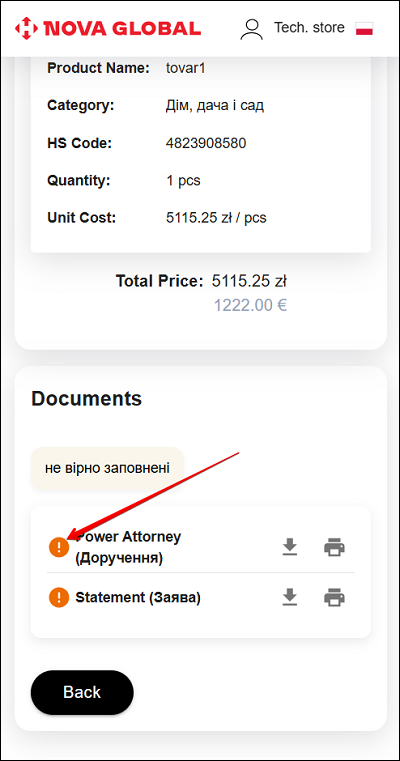
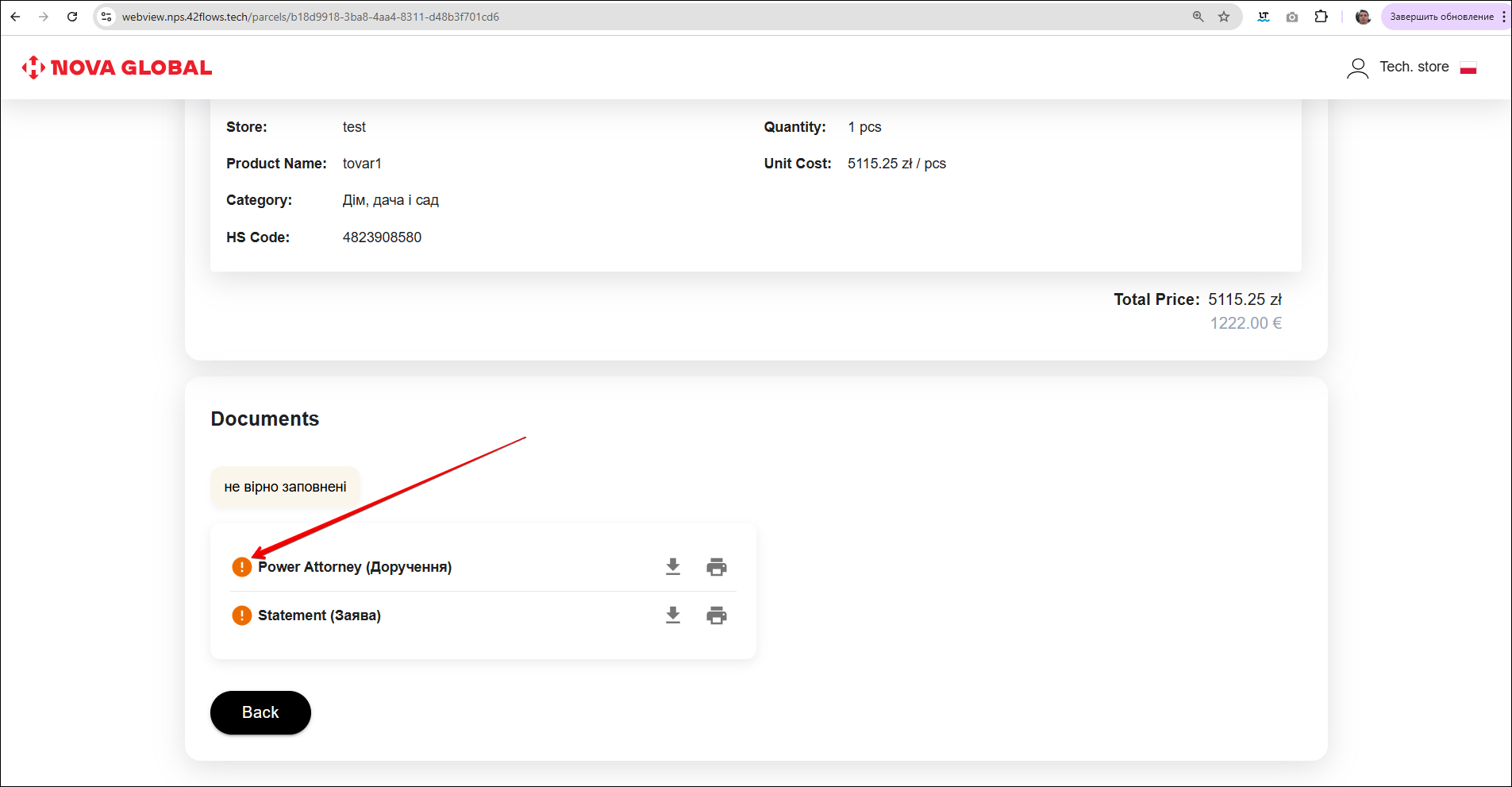
Until the recipient re-uploads the documents, the parcel status will remain changed from Documents 1000+ € to Waiting for Documents.