Interface
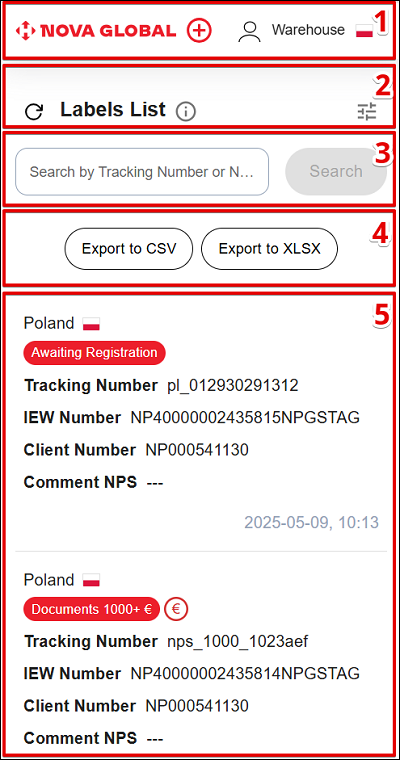
The main page of the service is visually divided into parts:
Desktop version
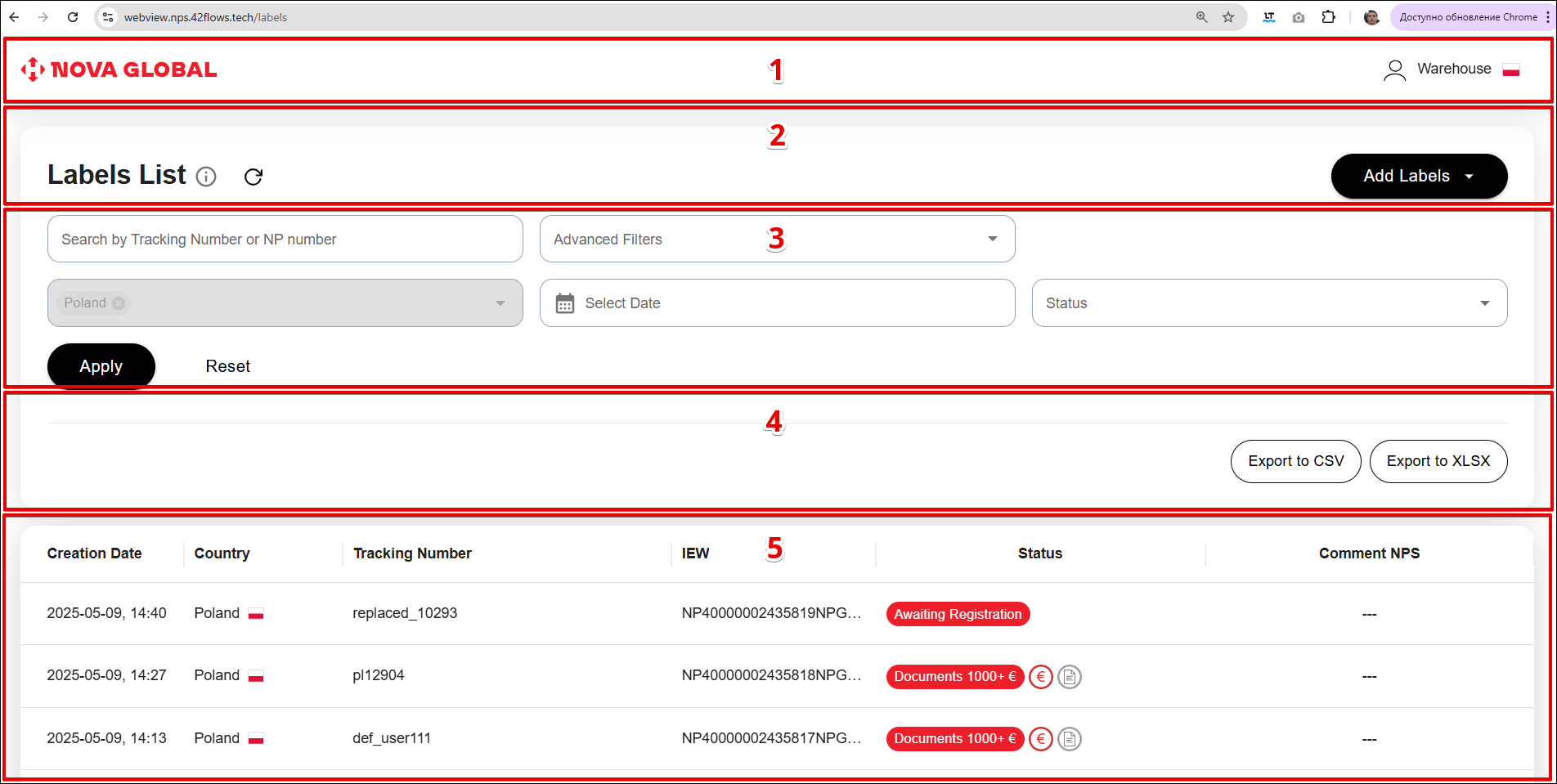
On the desktop version the blocks are arranged differently:
| № | Block | Description |
|---|---|---|
| 1 | Header | Contains a non-clickable NOVA GLOBAL logo and the Warehouse profile icon. There is no ⊕ icon in the header |
| 2 | Label management | The on-screen heading is Labels List. Contains a refresh icon, a manual icon, and the Add Label button |
| 3 | Search engine and filters | Contains the search field, Advanced Filters, country, the Select Date field, Status, and the Apply and Reset buttons |
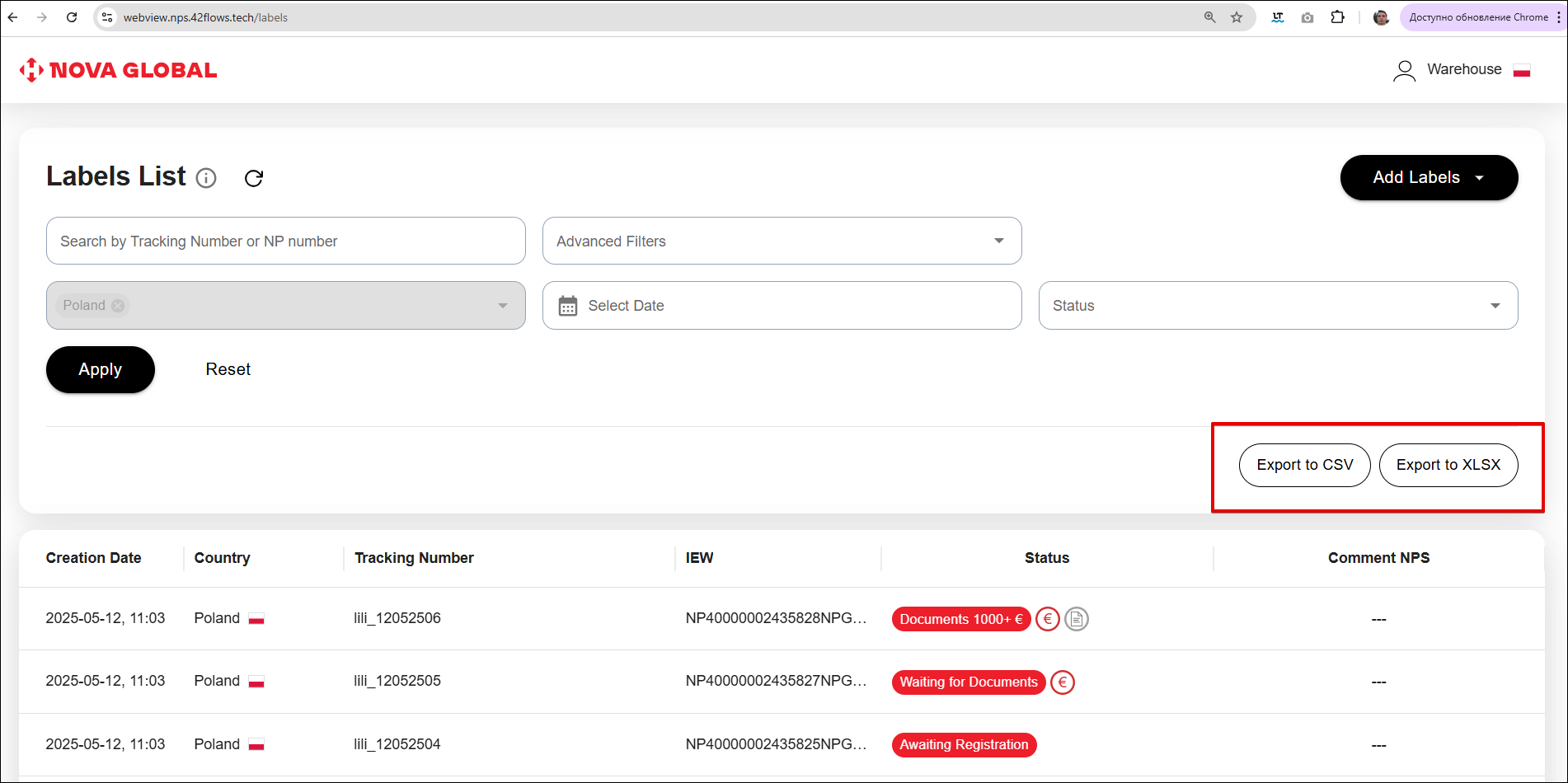
| 4 | Export label | Allows you to export labels to .csv and .xlsx files with the Export To CSV and Export To XLSX buttons |
| 5 | Labels List | Shown as a table with the columns Creation Date, Country, Tracking Number, IEW, Status, Comment NPS. There is no Client Number column |
| № | Block | Description |
|---|---|---|
| 1 | Header | Contains a non-clickable NOVA GLOBAL logo, the ⊕ icon (Додати лейбу), and the Warehouse profile icon |
| 2 | Label management | The on-screen heading is Labels List: |
| 3 | Search engine and filters | Searches labels by tracking number or NP number. The field placeholder is Search by Tracking Number or NP number. On mobile, filters open from the icon in Label management See Search engine and filters for more information |
| 4 | Export label | Allows you to export labels in .csv and .xlsx files |
| 5 | Labels List | The block shows a list of labels. Each record contains: Each label is a separate card. Records are separated by a horizontal line |
Header
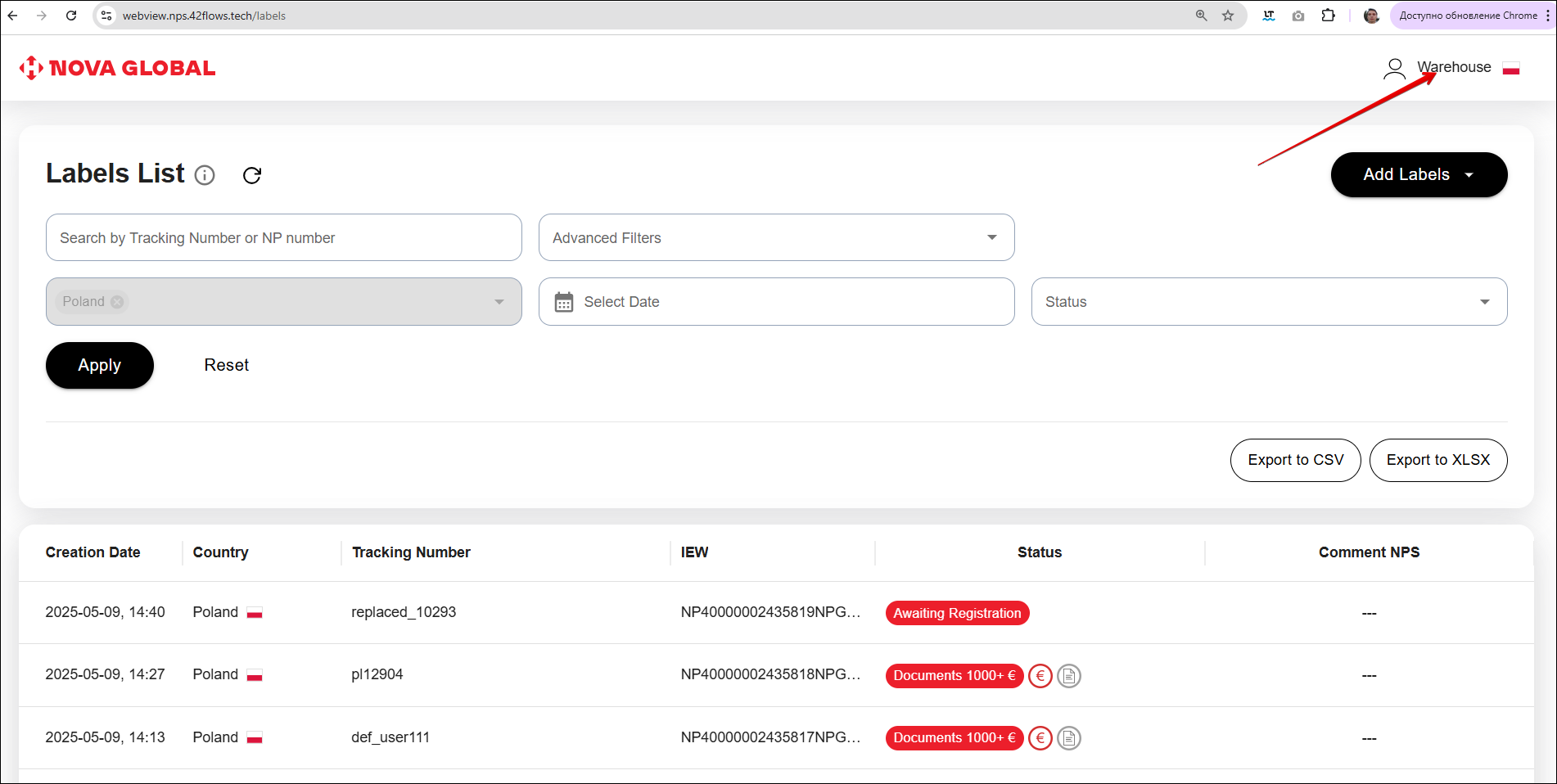
The Warehouse user profile icon is located on the right side of the header.
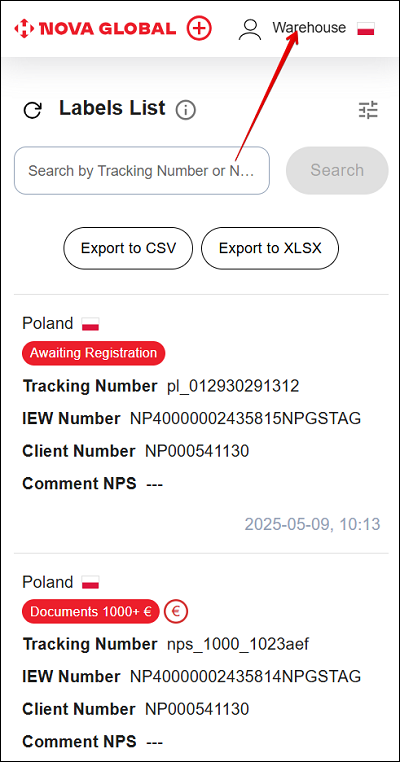
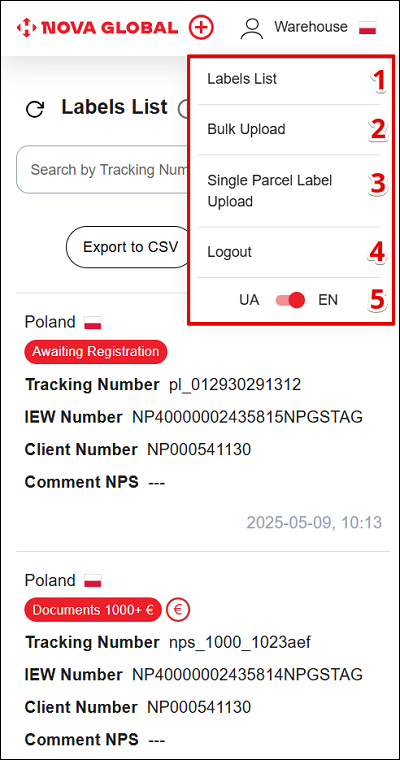
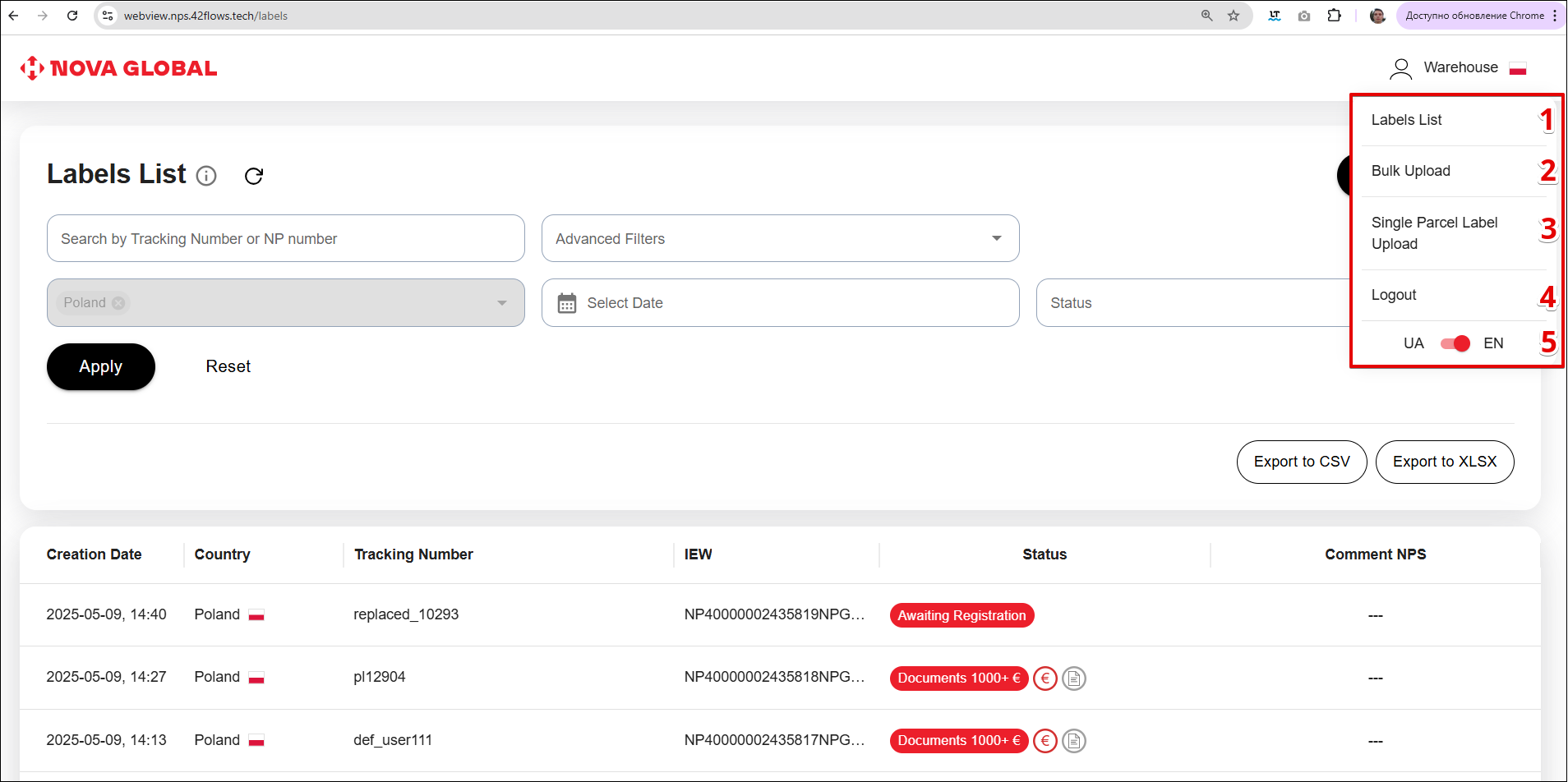
Clicking on the Warehouse profile icon opens a menu with the following items:
| № | Item | Description |
|---|---|---|
| 1 | Labels List | Allows you to navigate to the page with a list of labels |
| 2 | Bulk Upload | Allows you to navigate to the Bulk Upload page |
| 3 | Single Parcel Label Upload | Allows you to navigate to the Single Parcel Label Upload page |
| 4 | Logout | Allows you to log out of your account |
| 5 | Change Page localization switch | Allows you to change the interface language |
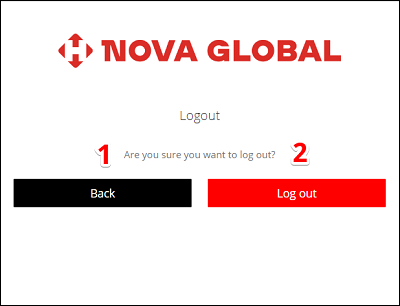
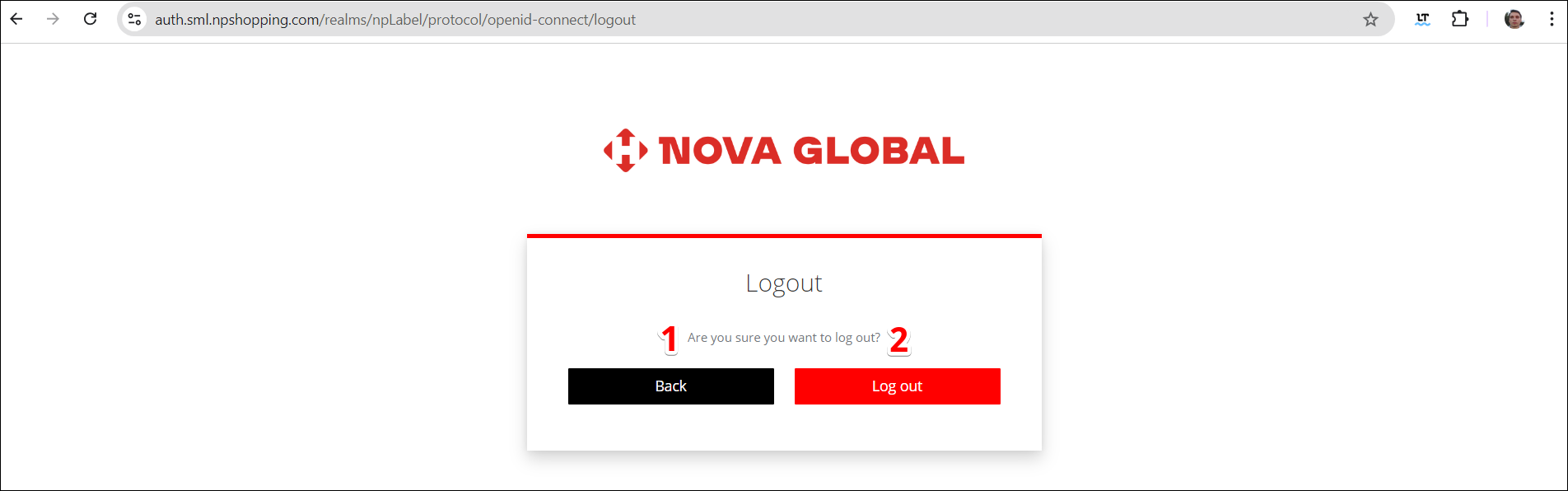
If you click on the Logout button, the system will offer to log out of your account or return to the admin panel by following the steps below:
| № | Button | Action |
|---|---|---|
| 1 | Back | Allows you to return to the admin panel |
| 2 | Log out | Allows you to log out of your account |
Desktop version
The desktop version is different from the mobile version in the style of elements arrangement, along with the width of the screen
| № | Item | Description |
|---|---|---|
| 1 | Labels List | Allows you to navigate to the page with a list of labels |
| 2 | Bulk Upload | Allows you to navigate to the Bulk Upload page |
| 3 | Single Parcel Label Upload | Allows you to navigate to the Single Parcel Label Upload page |
| 4 | Logout | Allows you to log out of your account |
| 5 | Change Page localization switch | Allows you to change the interface language |
| № | Button | Action |
|---|---|---|
| 1 | Back | Allows you to return to the admin panel |
| 2 | Log out | Allows you to log out of your account |
Label management
Adding labels
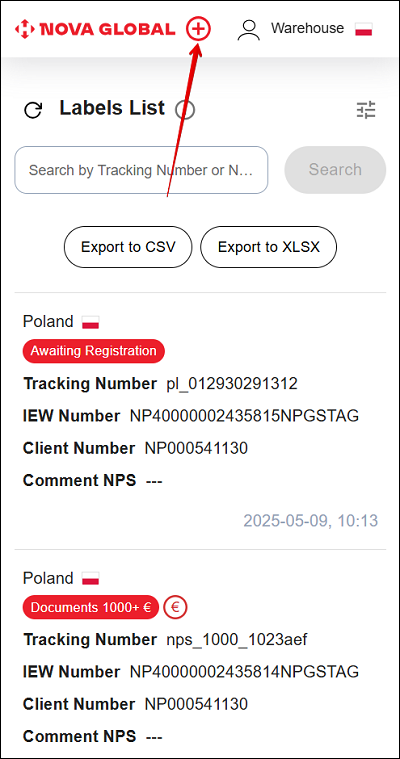
In the mobile version, clicking the ⊕ icon (Додати лейбу) opens Quick download:
Desktop version
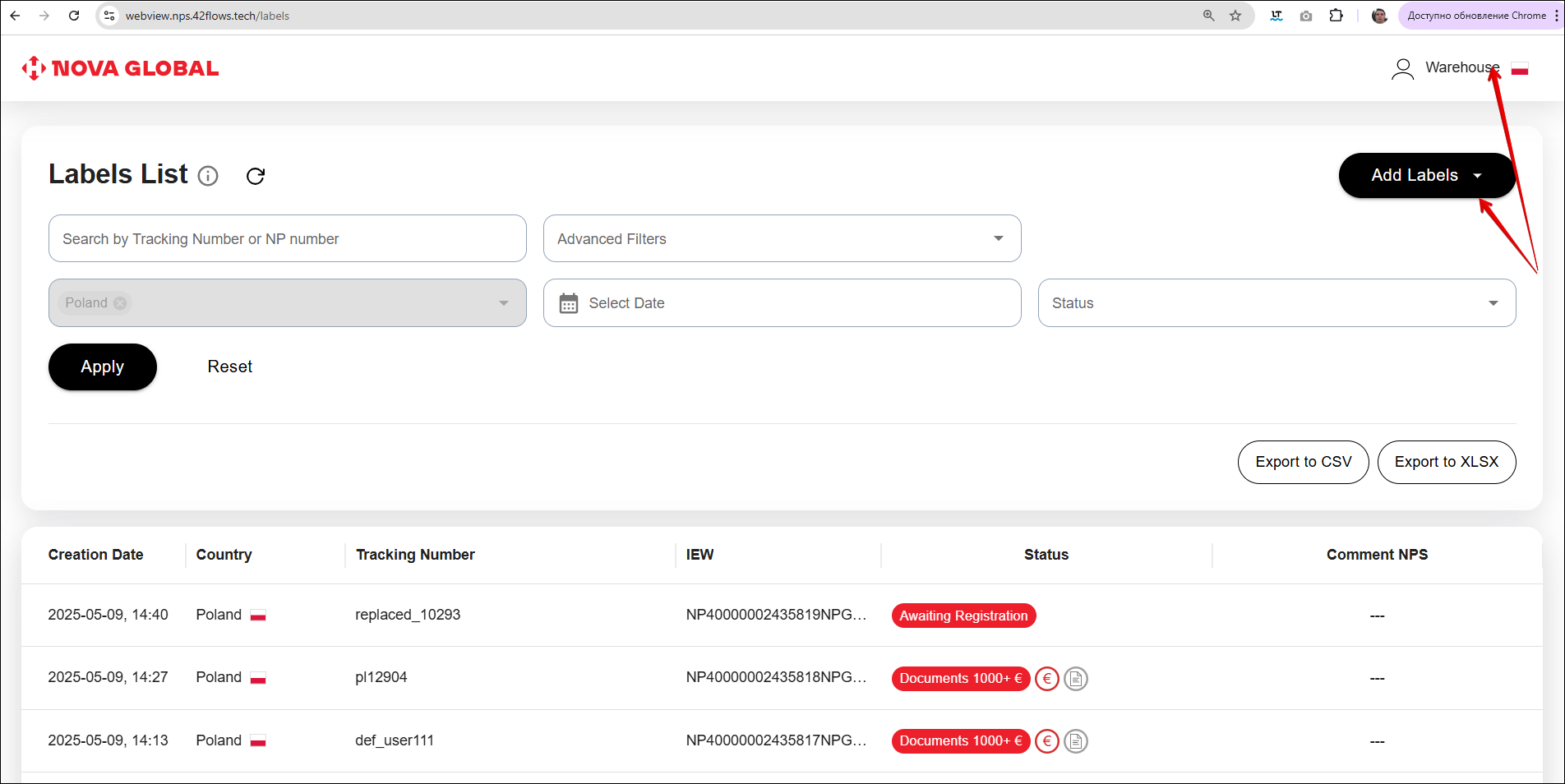
In the desktop version, you can add labels by clicking the Add Label button, or the Warehouse icon and select the desired item in the menu. The process of labels addition is described in details in the Single Parcel Label Upload and Bulk download sections
Updating the label list
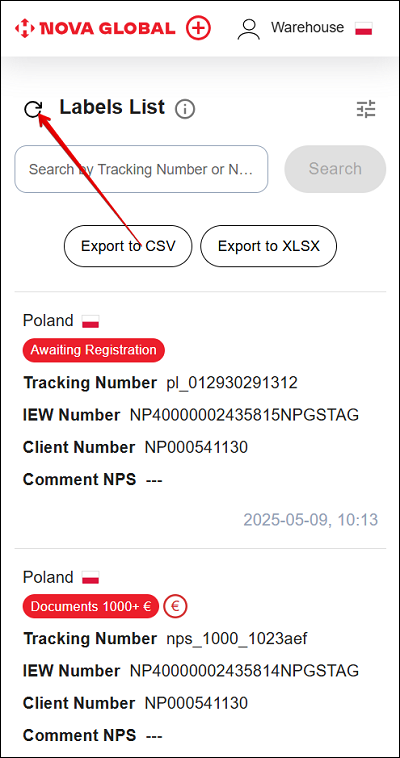
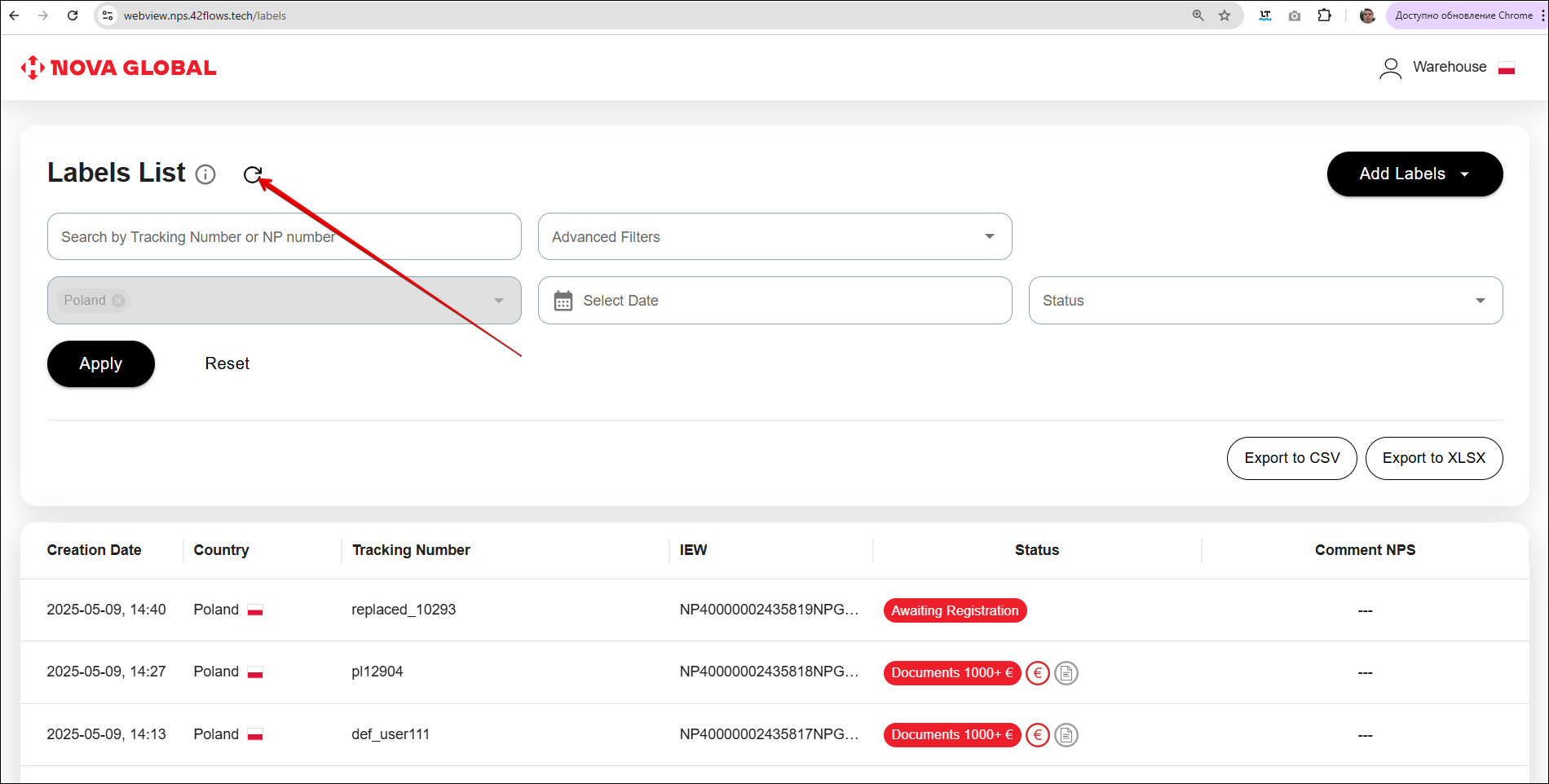
The refresh icon next to the Labels List heading updates the list and checks whether statuses are current.
Desktop version
The desktop version differs from the mobile version in the arrangement of elements along the width of the screen
Search engine and filters
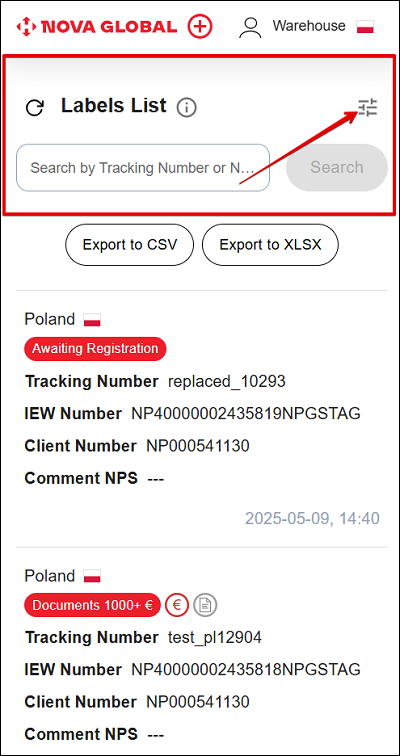
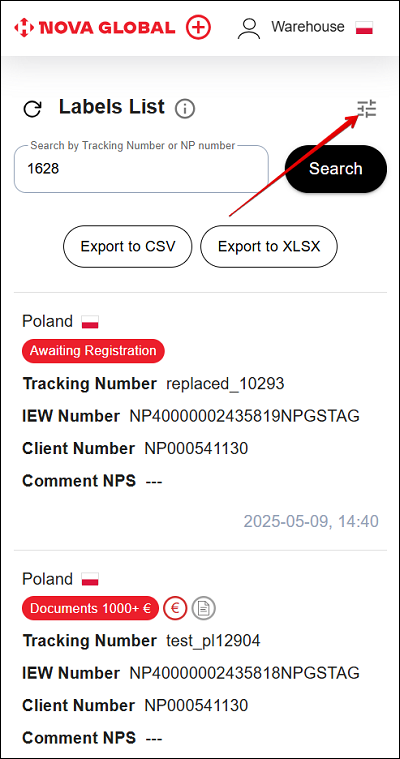
To open the filters, click the filter icon next to the Labels List heading. There is no Filter caption on the screen.
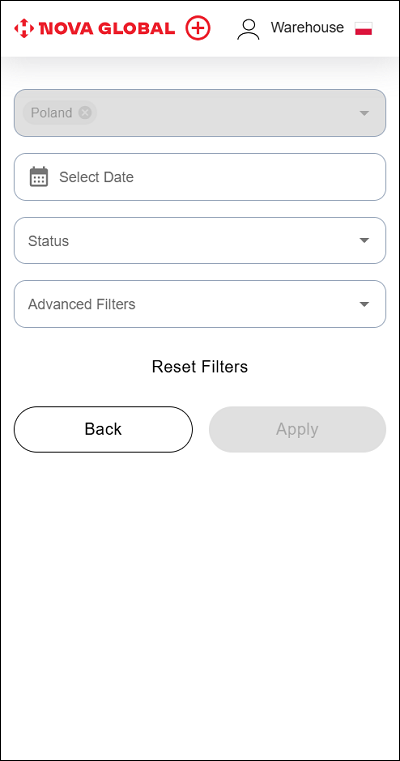
A page with a list of filters opens.
Desktop version
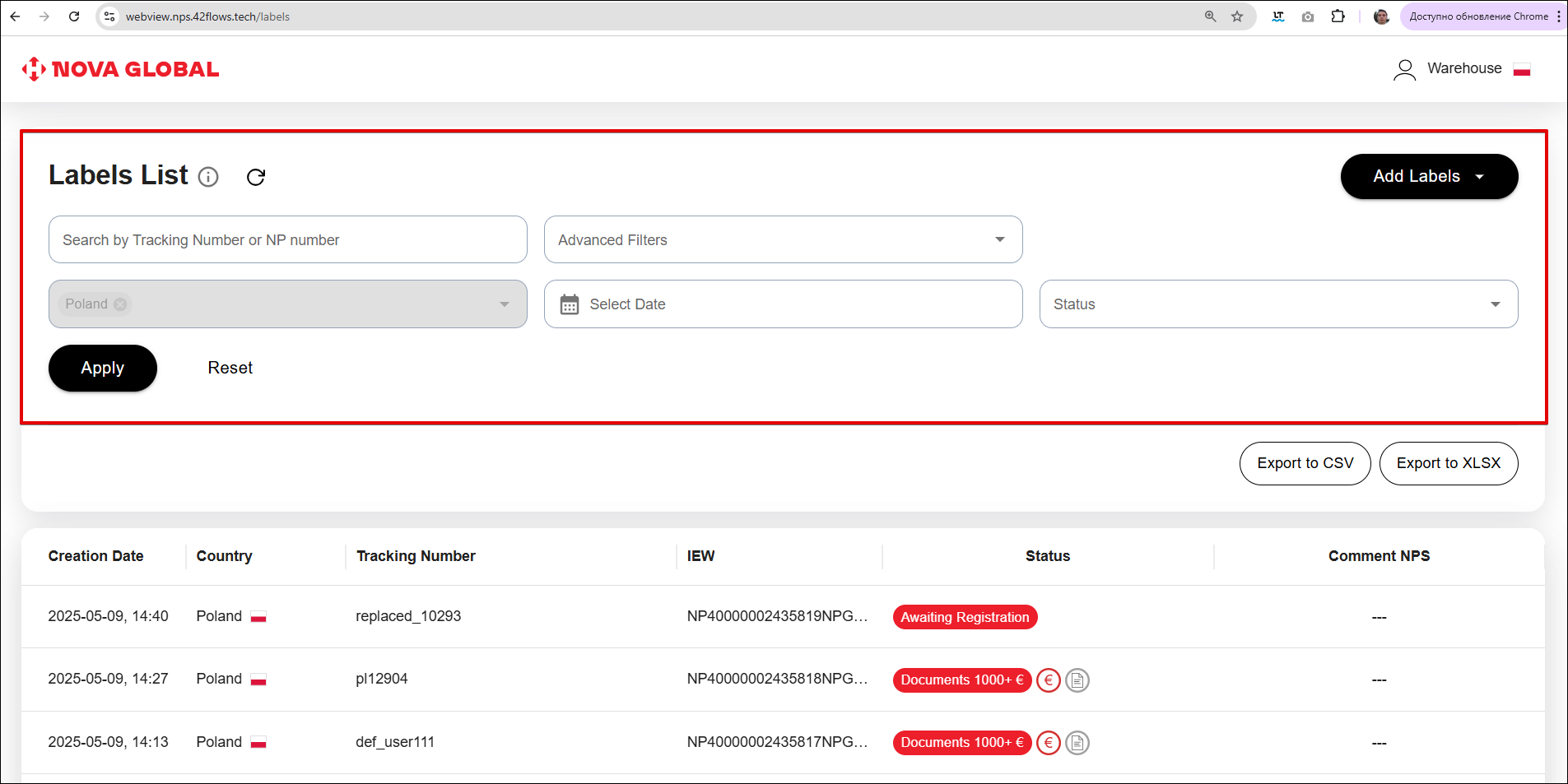
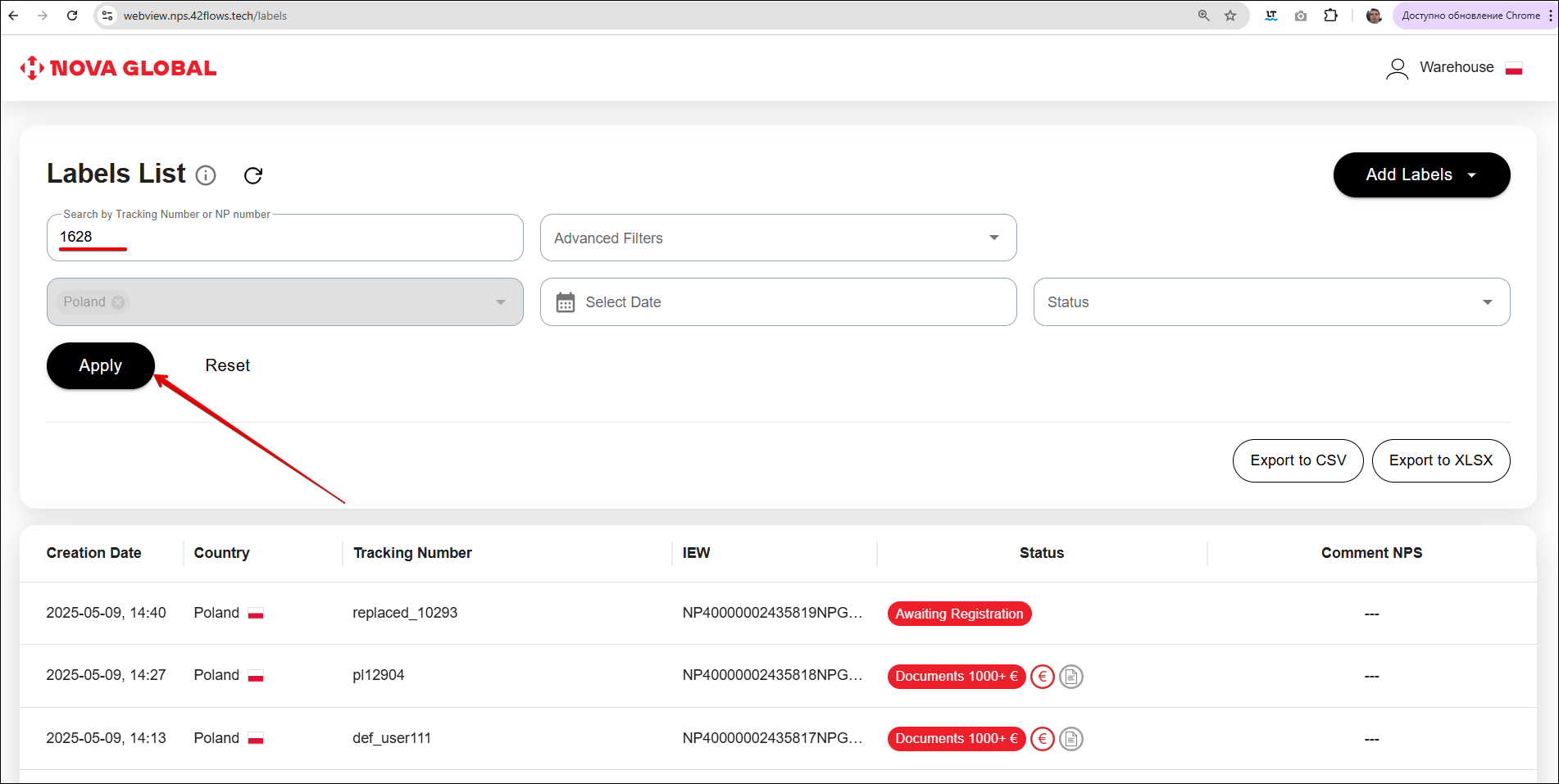
In the desktop version, the search engine is located on the main page.
Search
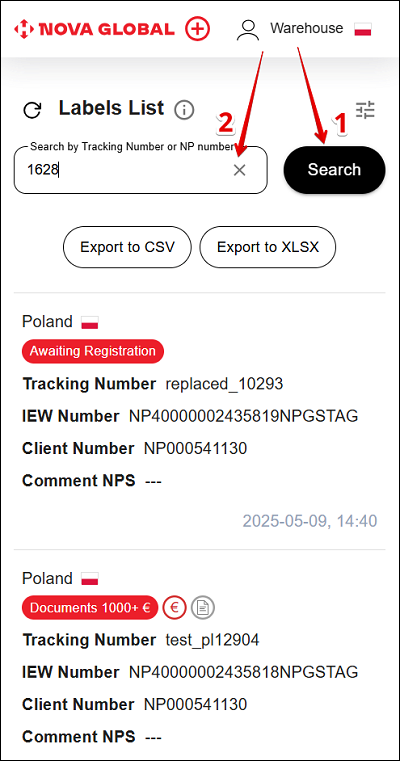
On the Labels List page, you can search by Tracking Number or NP number. The search field placeholder is Search by Tracking Number or NP number.
- To launch the Search, enter the Tracking Number or NP number in the search field and click the Search button;
- To delete the entered value, click ✖️ in the search field.
Desktop version
To run a Search for the entered value, click the Apply button.
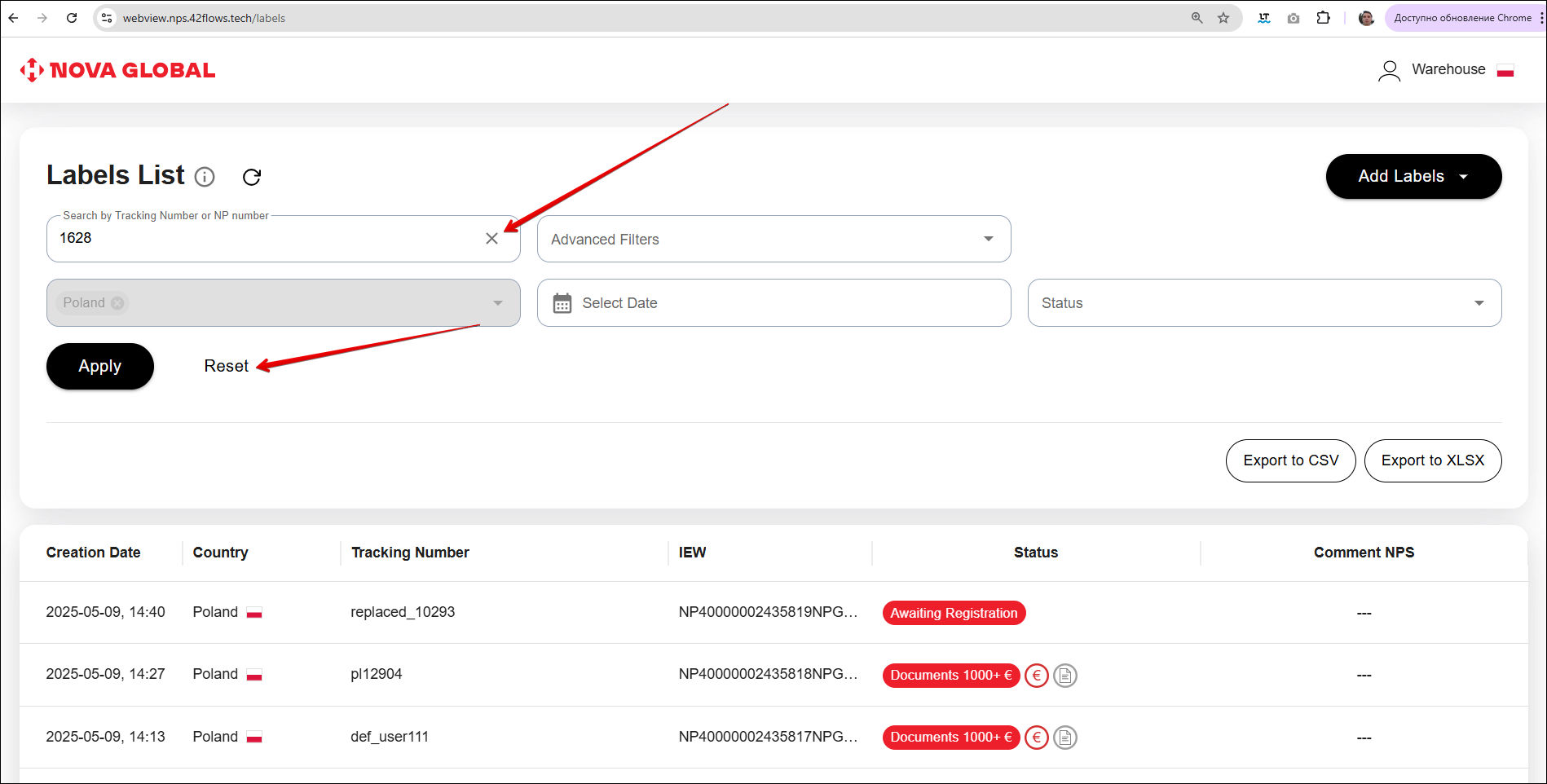
To clear Search, remove the entered value by clicking ✖️ in the search field or the Clear button.
Filter
A filter allows the user to define certain criteria that the search results should meet. In the mobile version, click the filter icon next to the Labels List heading to apply filters.
The following filters are available on the page:
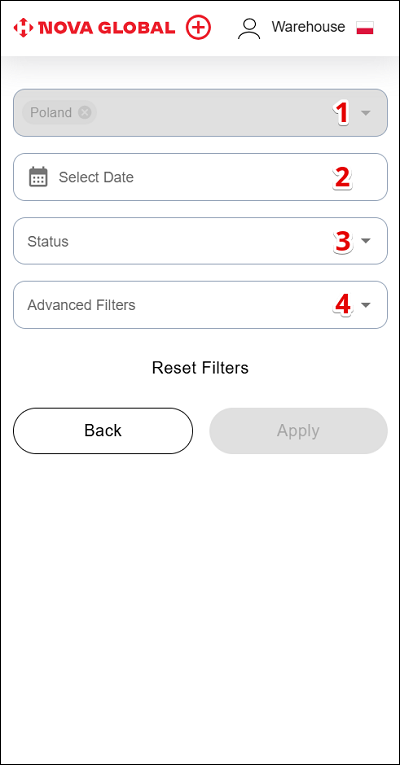
| № | Filter | Description |
|---|---|---|
| 1 | Country | Attention! Country filter is not available yet, it displays only the employee's home country |
| 2 | Select Date | A field with the Select Date placeholder. Allows you to display labels for a specific date Attention! The date filter works on the principle From - to (02.07.2024 - 02.07.2024 - labels for 02.07.2024 are displayed) |
| 3 | Status | Allows you to display labels with specific statuses. You can select any number of statuses |
| 4 | Advanced Filters | Allows you to open a window with such filters: |
Desktop version
In the desktop version, filters are immediately available.
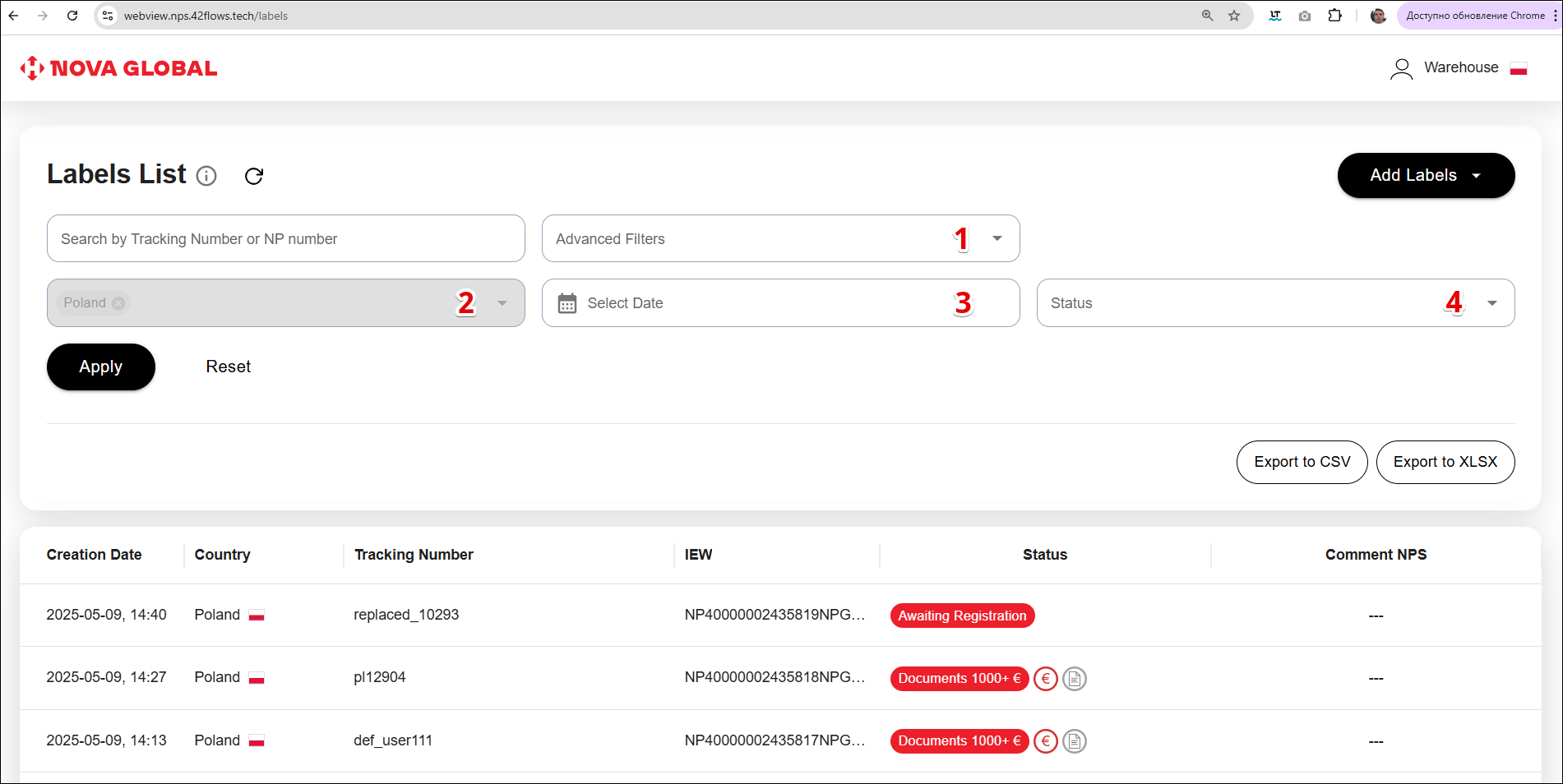
| № | Filter | Description |
|---|---|---|
| 1 | Advanced Filters | Allows you to open a window with such filters: |
| 2 | Country | Attention! Country filter is not available yet, it displays only the employee's home country |
| 3 | Select Date | A field with the Select Date placeholder. Allows you to display labels for a specific date Attention! The date filter works on the principle From - to (02.07.2024 - 02.07.2024 - labels for 02.07.2024 are displayed) |
| 4 | Status | Allows you to display labels with specific statuses. You can select any number of statuses |
Filter Country
The Filter Country is not available yet, it displays only the employee's home country.
Filter Date
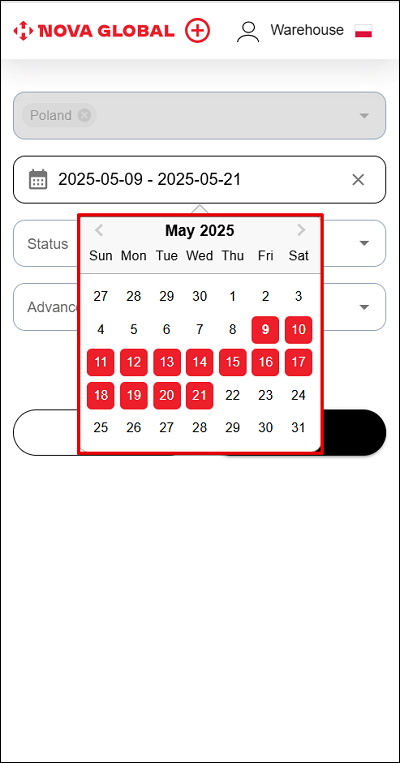
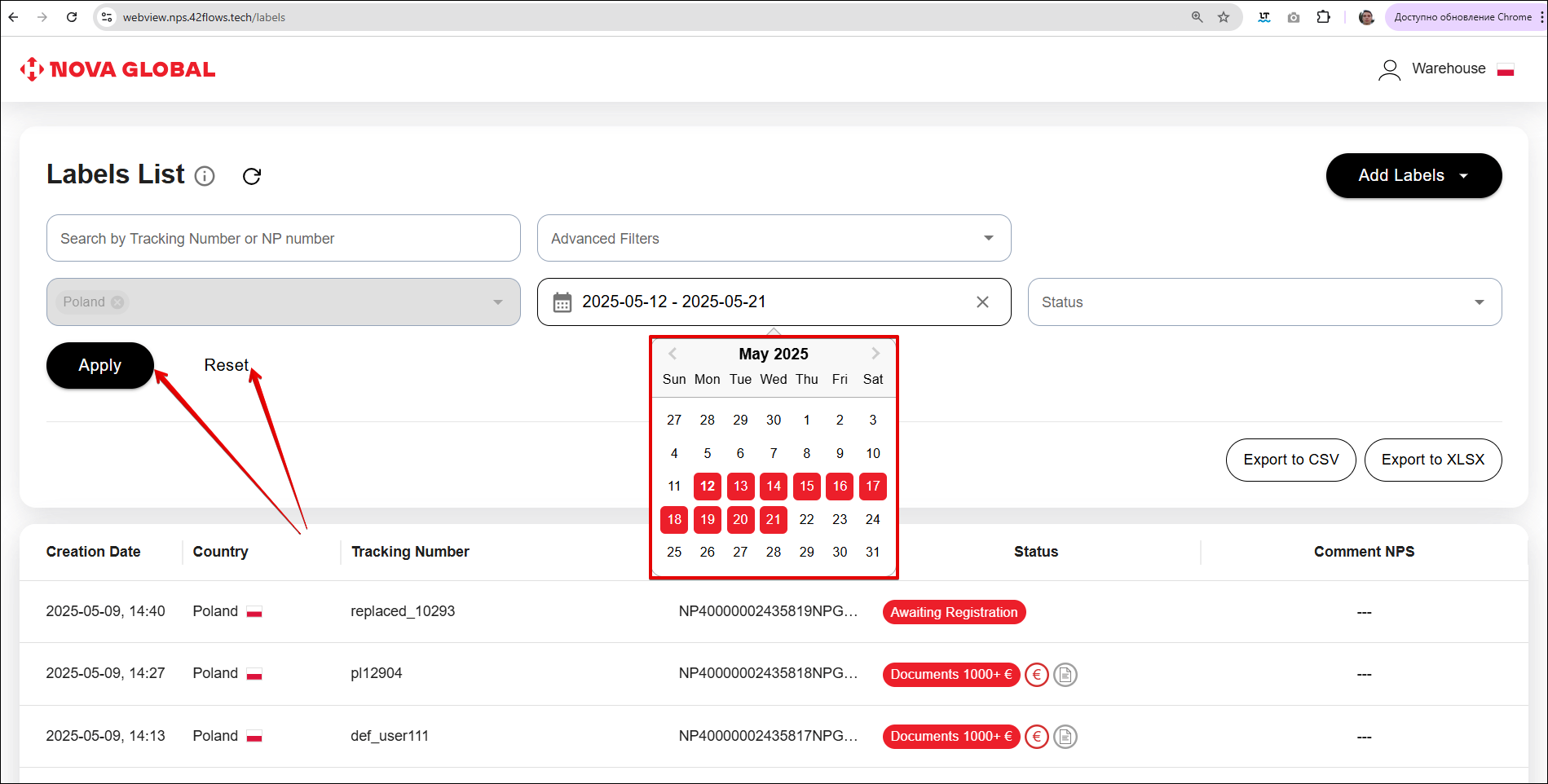
The field on the screen has the Select Date placeholder. The filter works on the principle of From-to (01.10.2024 - 08.10.2024 = parcels for the period are displayed).
The date range works the same way on desktop and mobile. The reset control has a different label
Select the required dates from the built-in calendar. To apply the filter, click Apply. To reset the filters, click Reset Filters on mobile and Reset on desktop.
Filter Status
The Filter Status combines all possible internal and system statuses of parcels.
The list of statuses is the same on desktop and mobile. The reset control has a different label
Select the required status(es) from the drop-down list:
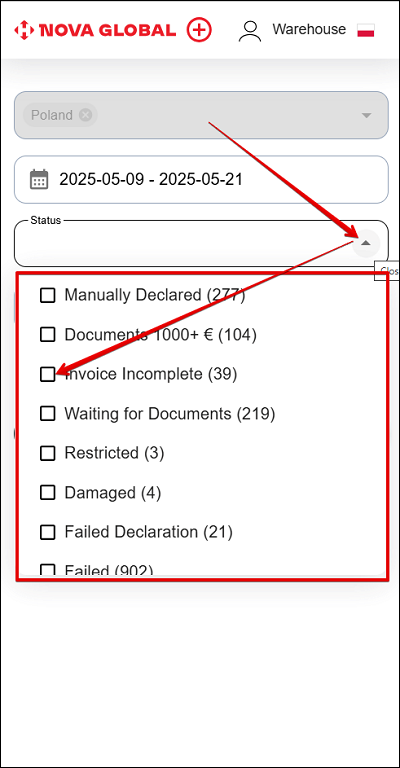
To apply the search by selected statuses, click Apply. Back returns to the label list. To reset the filters, click Reset Filters.
Desktop version
In the desktop version, do the following to apply or reset the search by filters:
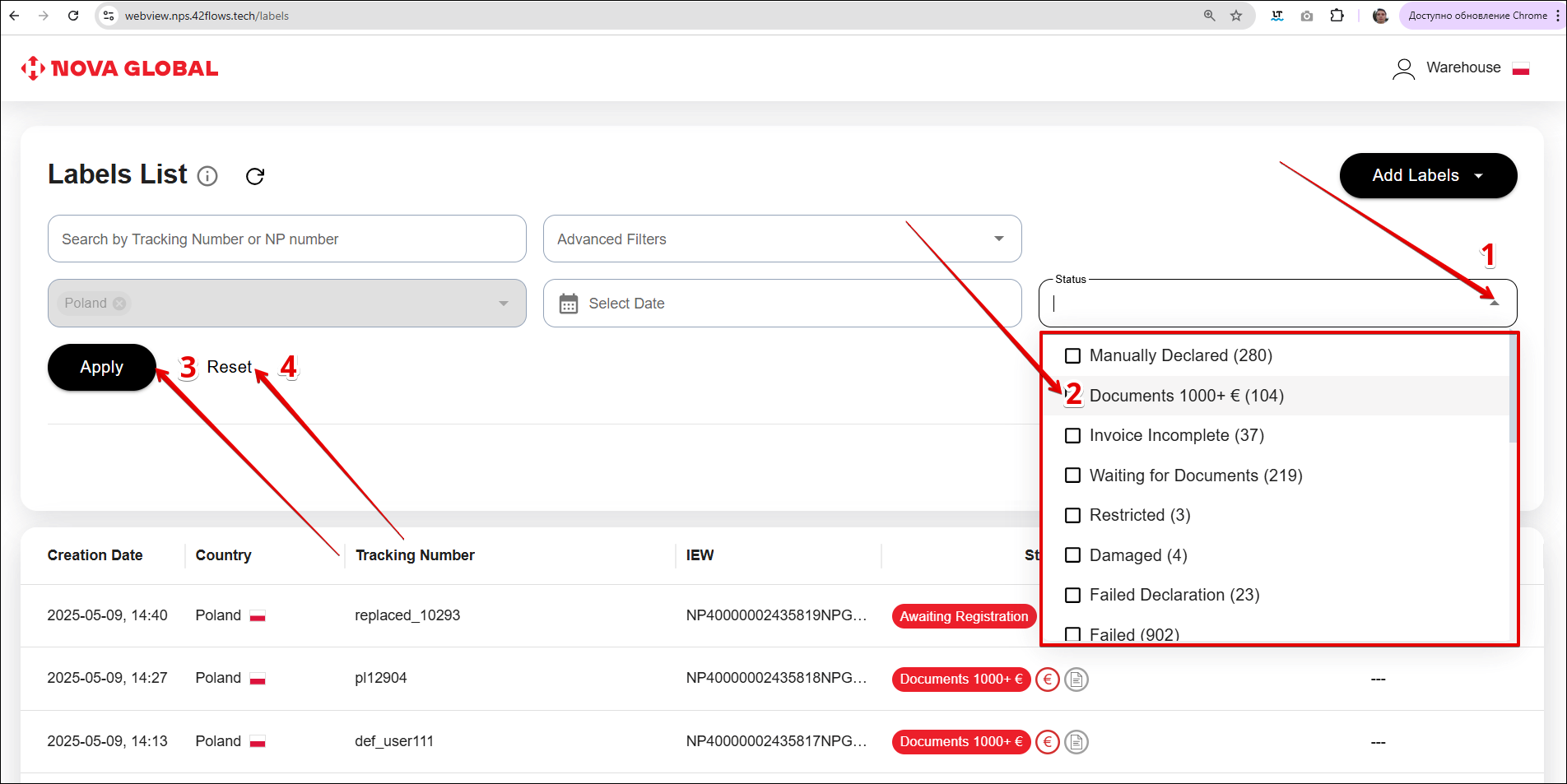
| # | Action |
|---|---|
| 1 | Click the *Expand icon |
| 2 | Tick the checkbox. You can select one or more statuses |
| 3 | To apply the search by selected statuses, click the Apply button |
| 4 | To reset the search by filters, click the Reset button |
The parcel counters in the status filter show the total number of parcels and their distribution by country.
Parcel statuses for warehouses in different countries
| № | Status | Description |
|---|---|---|
| Internal statuses: | ||
| 1 | Invoice Incomplete | Interim status means that the invoice is incomplete. You need to manually fill in the data about the goods in the parcel |
| System statuses: | ||
| 2 | Already Registered | The final status means that the parcel with the label data has been successfully saved in NPS and registered by the customer. It is distinguished from other statuses by green colour |
| 3 | Awaiting Registration By Client | The user immediately added the tracking number, but did not register the parcel. After 24 hours, the user has not completed the registration of the parcel, and the data they added earlier is automatically deleted. This status, unlike other statuses, is marked in yellow |
| 4 | Awaiting registration | The parcel with data has been successfully saved in the NPS system and is waiting for registration by the client |
| 5 | Disposal | Final status, the parcel with data from the label received the status Disposed in the NPS system |
| 6 | Restricted | Means that the goods in the parcel are prohibited. The manager or administrator can change the status to Invoice Incomplete, after which the rules of this status apply |
| 7 | Damaged | Indicates that the parcel is damaged; the status can be changed to Invoice Incomplete by the decision of the manager or administrator (further actions according to the status of the parcel) |
| 8 | Manually Declared | All the necessary information about the investment has been generated |
| 9 | Waiting for Documents | To complete the registration, it is necessary to receive supporting documents from the client |
| 10 | Failed Declaration | The registration is unsuccessful - the declaration is executed with violations. The technical warehouse employee can re-attach the invoice twice |
| 11 | Mixed labels error | Final status. The label card shows a warning: labels assigned to different parcels have been uploaded. Please upload the selected labels again using the bulk upload option |
| 12 | Failed | The final status indicates that a label was uploaded for which the necessary data could not be obtained or the data obtained from the label could not be used to create a valid parcel object in NPS. You need to check the uploaded label and upload it again |
| 13 | Duplicated | The final status informing that the service already has a label with this track number |
| 14 | TN Generated, Awaiting Registration | A tracking number has been generated for the parcel, the parcel with the data from the label and the generated tracking number is saved in the NPS system and is waiting for registration by the customer if 24 hours have not passed since the unregistered parcel was added to the system (a timer will be displayed in the parcel card). If the time has expired, this status means that the technical warehouse employee needs to add an invoice |
| 15 | In Progress | The added investment data is being processed |
| 16 | Awaiting Client Data | If there is no recipient data in the parcel, the 24 hour timer does not start until the managers enter this data. After that, SML automatically receives the Awaiting Registration status and the timer starts counting |
| 17 | MD number | Final status, which means that the label identifies the MD number, but not the NP number of the client; the parcel will be processed by NPS managers, the parcel data is updated outside of SML |
| 18 | UA number | Final status, which means that the label identifies the UA number, not the NP number of the client; the parcel will be processed by NPS managers, the parcel data is updated outside of SML |
| 19 | Nova Safe Trade | The final status, which means that the label identifies the feature of parcels from Nova Safe Trade; the parcel will be processed by NPS managers, the parcel data is updated outside of SML |
| 20 | Deleted | Indicates that the order was deliberately deleted by managers in the admin panel (the parcel can be restored through the same admin panel) |
| 21 | Replaced | The admin can manually set this status if the parcel left under a different tracking number |
| 22 | New | The status is shown in the Status filter and on the label card |
Parcel statuses for a warehouse in Poland
An additional status is available for warehouses in Poland:
| № | Status | Description |
|---|---|---|
| 1 | Documents 1000+ € | Status only for parcels in Poland. It is displayed if the value of the parcel contents is more than EUR 1000 and the recipient has attached documents. The Polish technical warehouse has the opportunity to review the documents attached to the parcel and make a comment about incorrect documents |
For convenience, Status are marked in different colours
To apply the filters, click Apply. To reset the filters, click Reset Filters on mobile and Reset on desktop. On mobile, Back returns to the label list.
Filter Advanced Filters
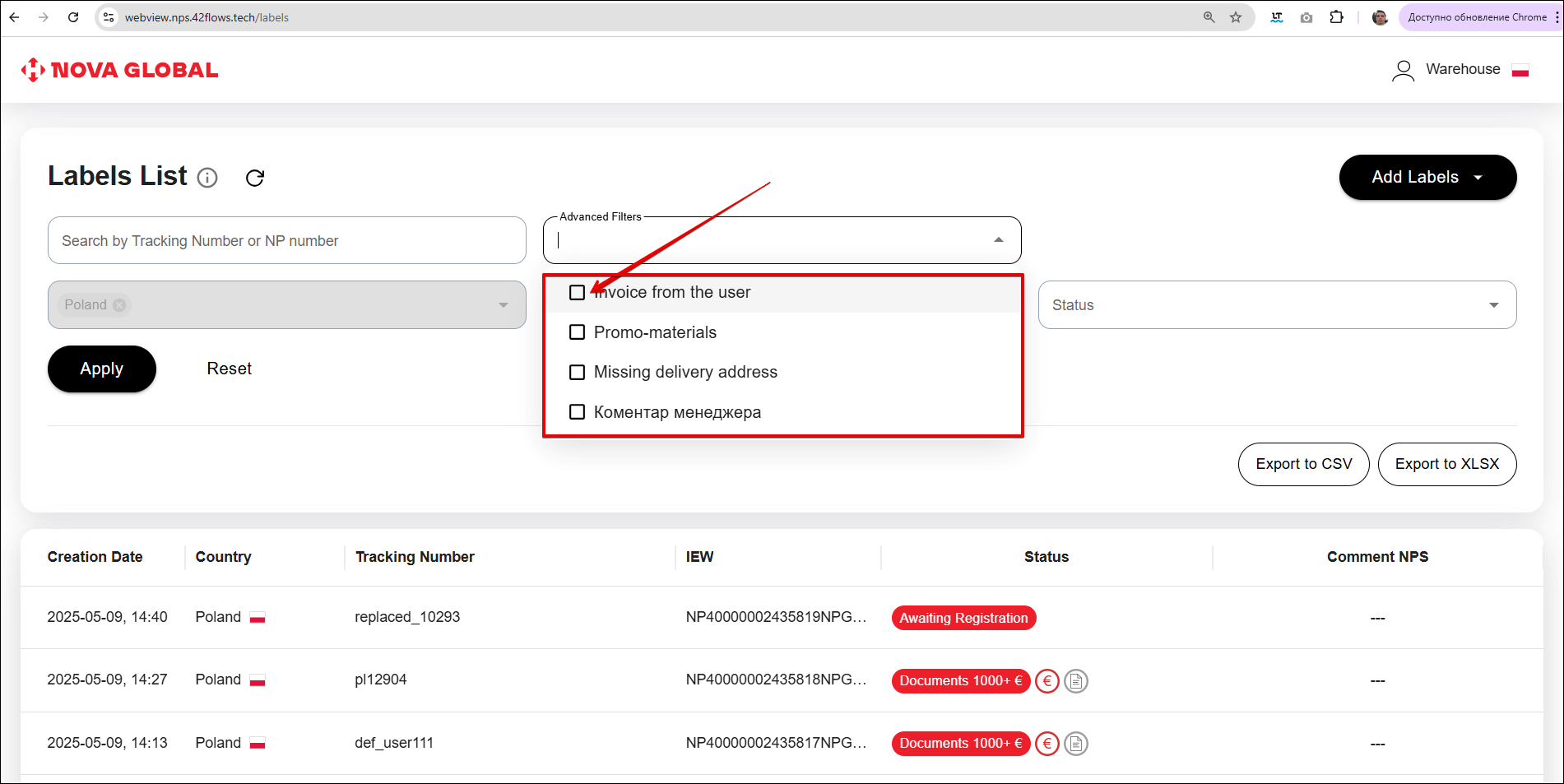
To open the filter list, click the Expand icon in the Advanced Filters field.
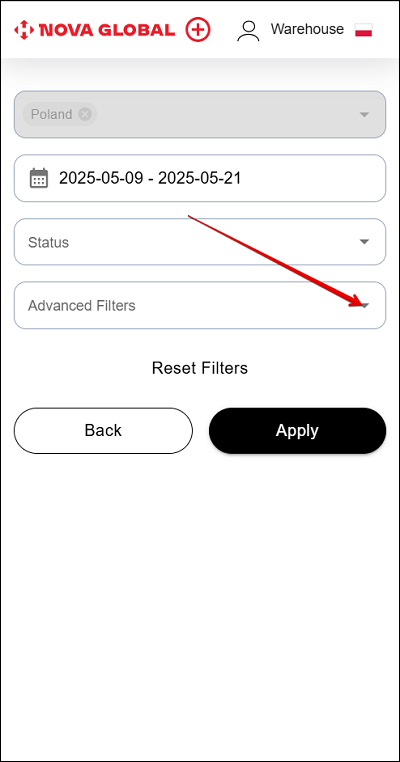
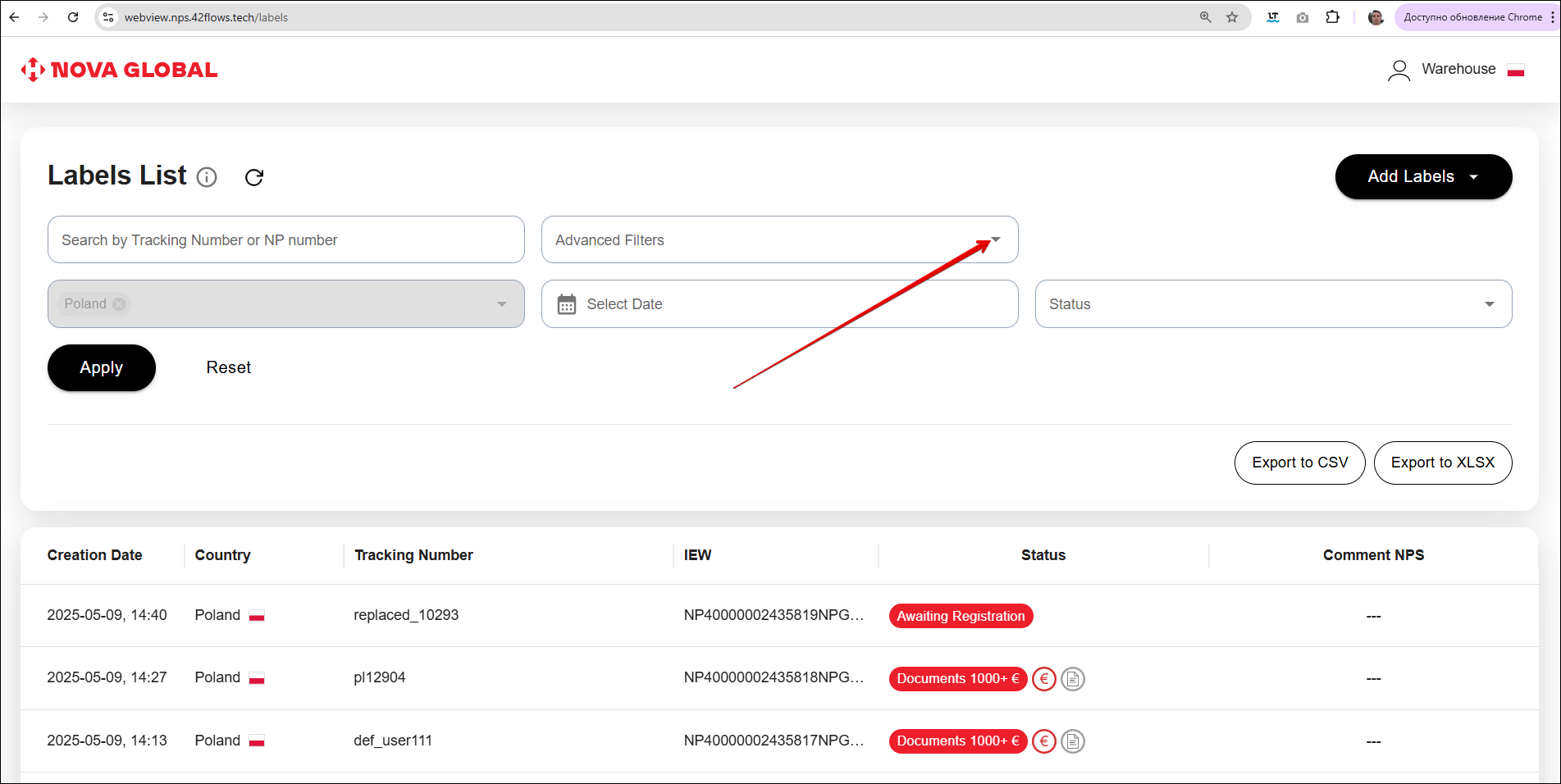
In the window that opens, select filters by ticking the required check boxes.
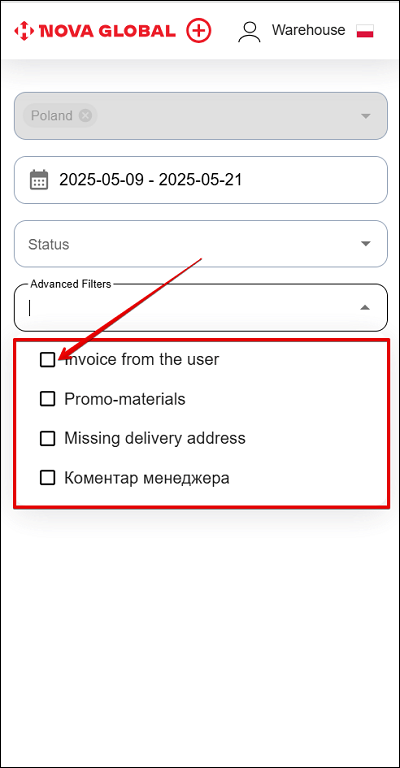
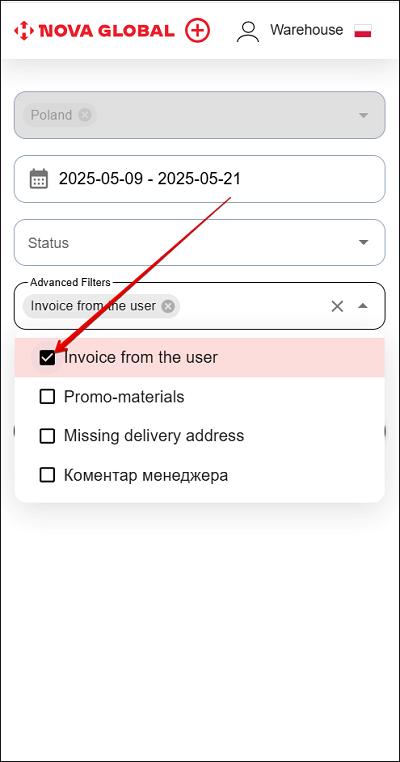
Filter Invoice from the user
The Invoice from the user checkbox shows parcels in which the invoice was added by the user.
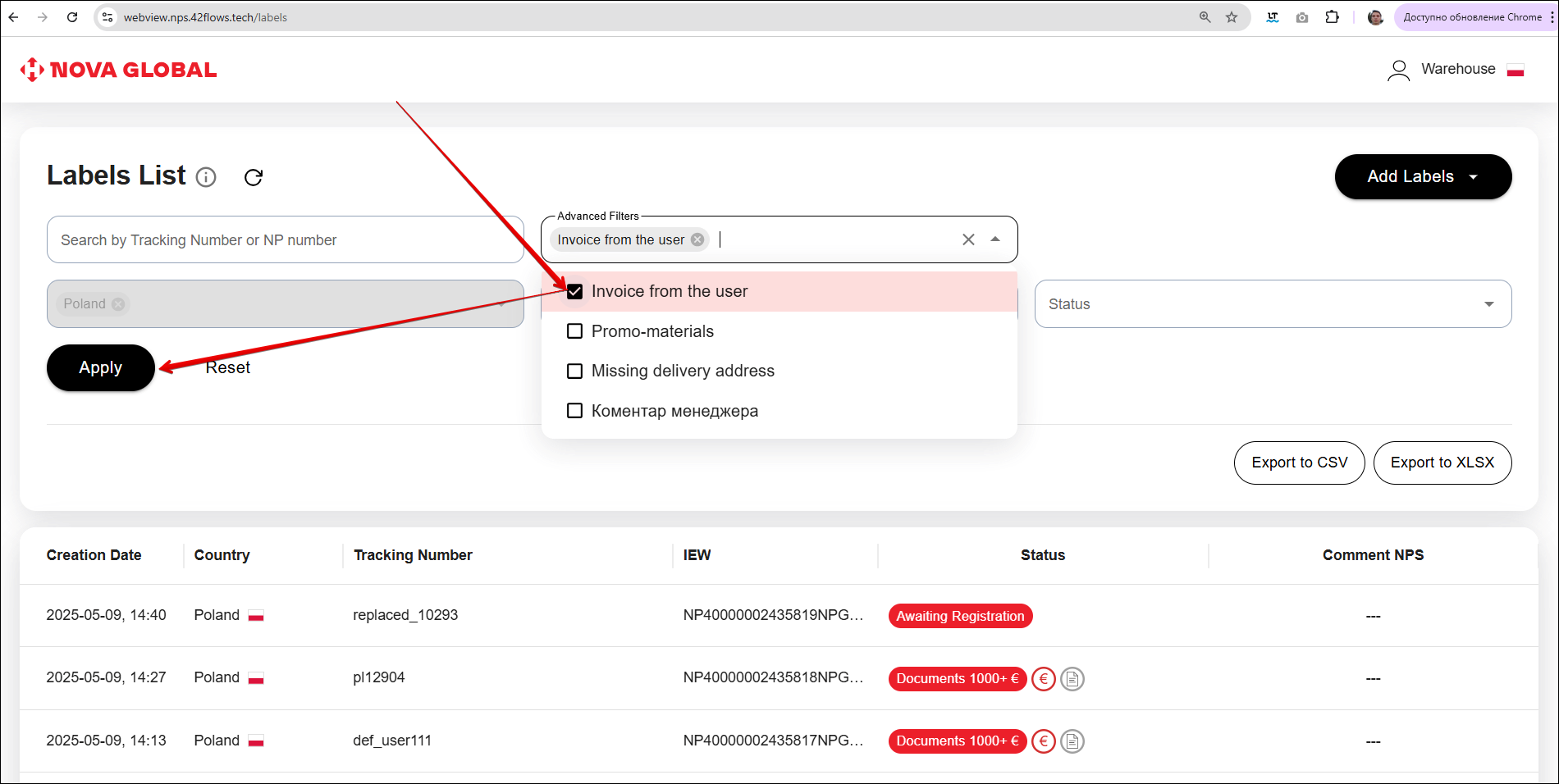
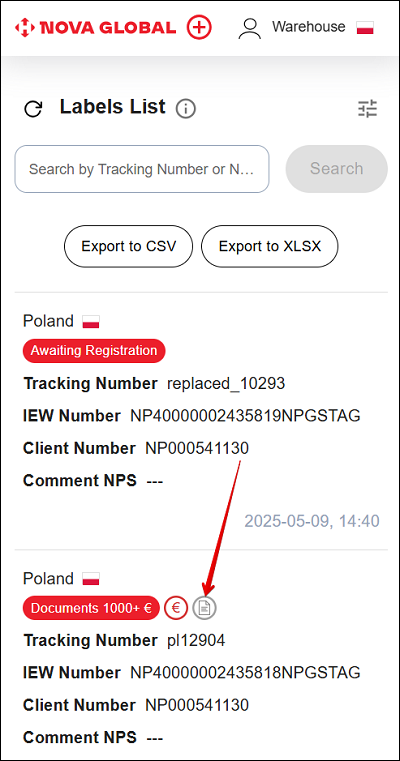
For such parcels, a special icon will appear next to the status.
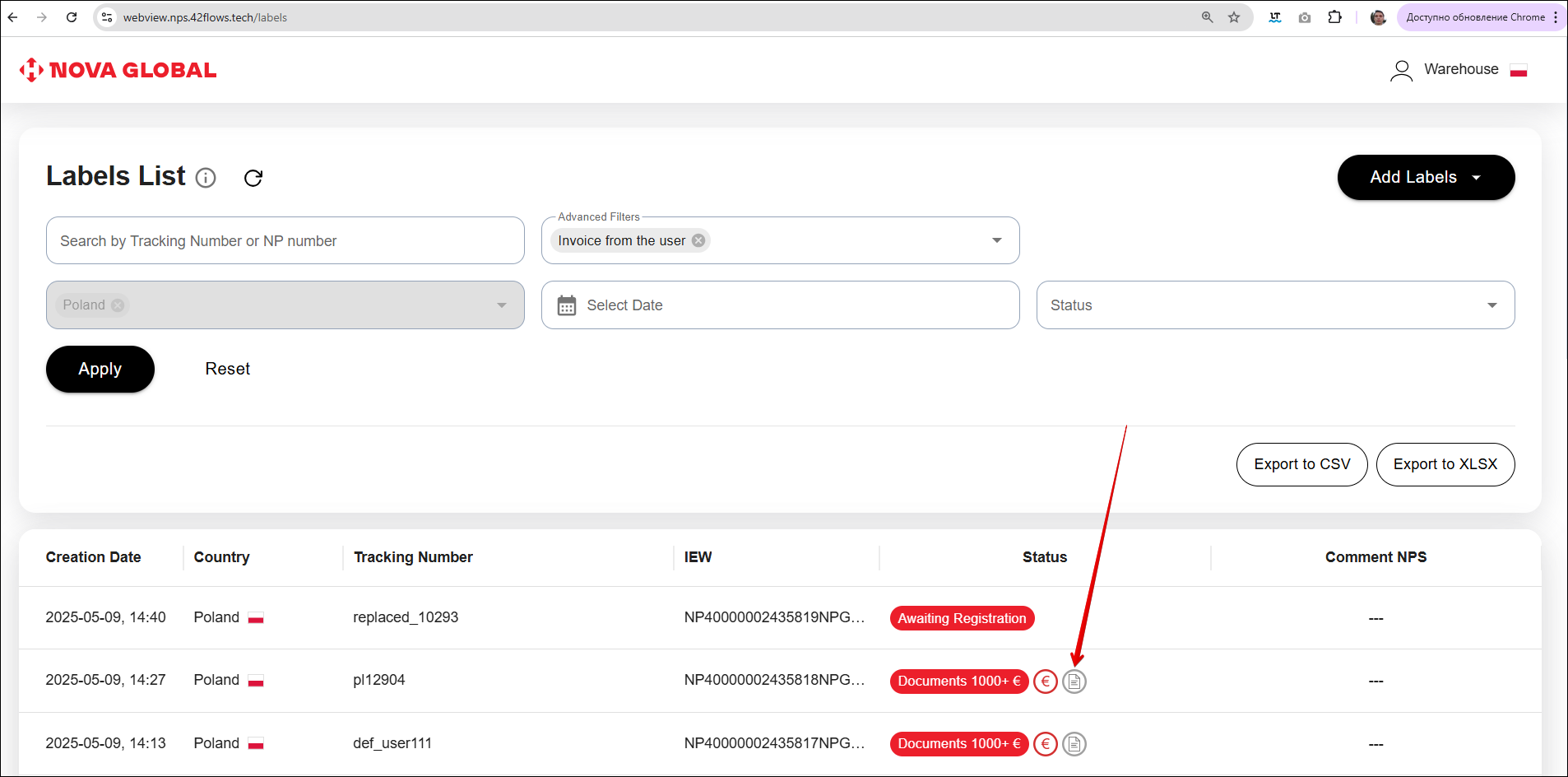
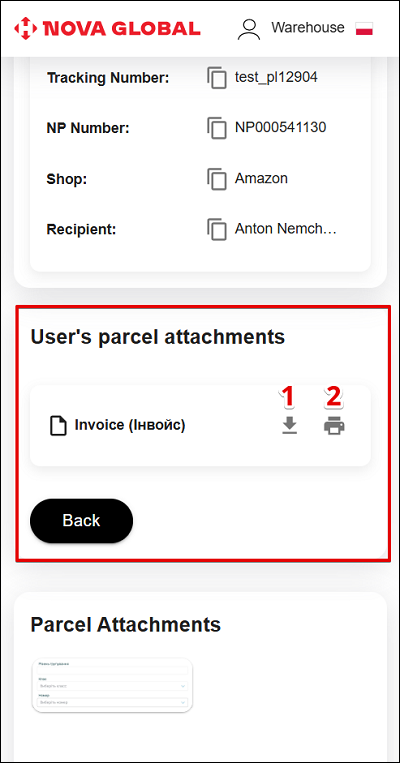
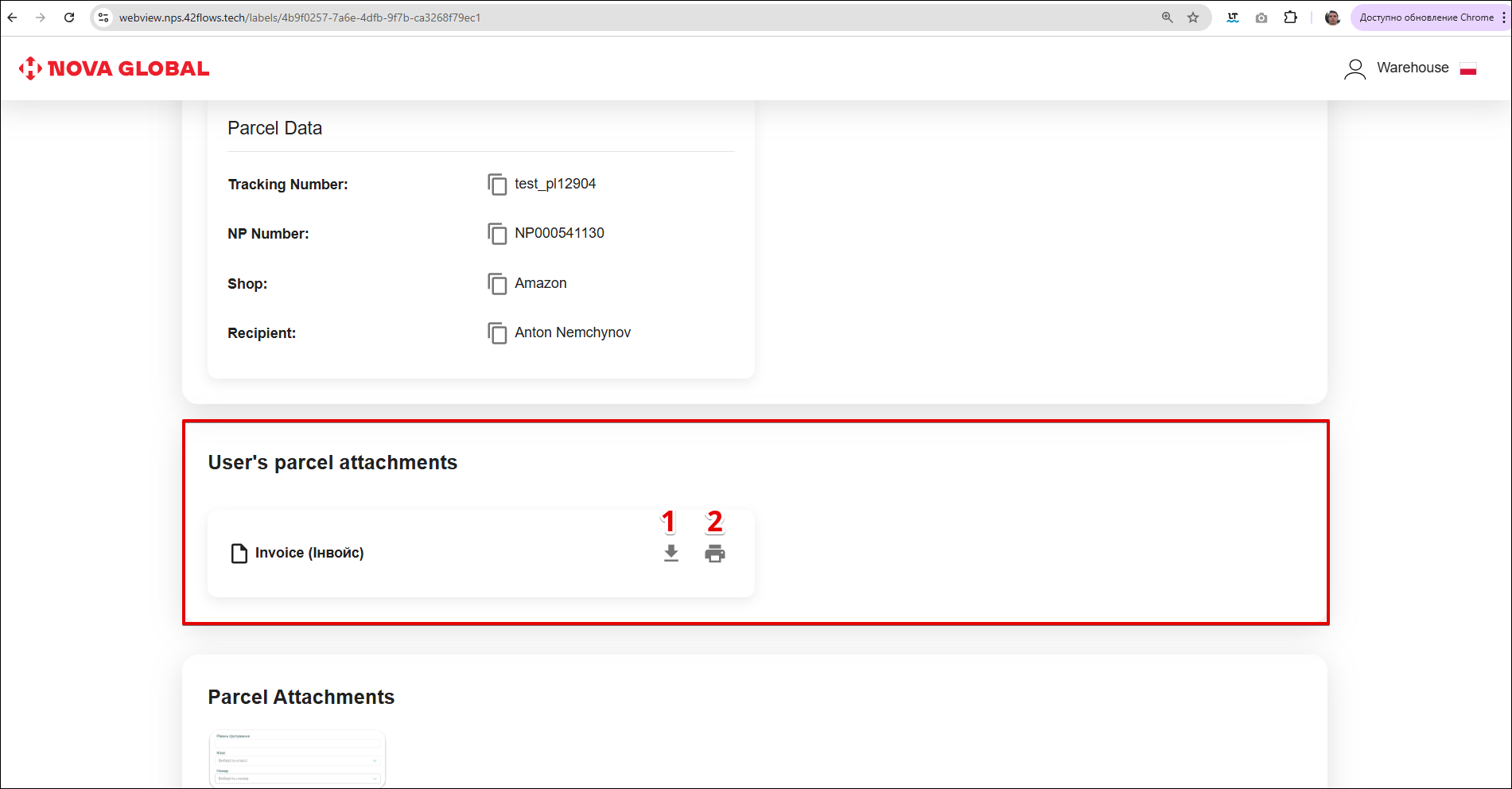
If the parcel is marked as Invoice from the user, the User`s parcel attachments block will appear on its page. This means that the customer has added the invoice himself. A warehouse employee can:
- Download it;
- Print it out.
Filter Promo-materials for the Polish and British warehouse
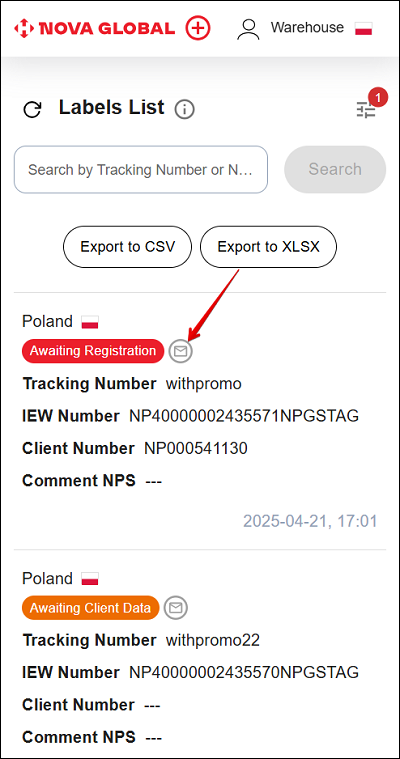
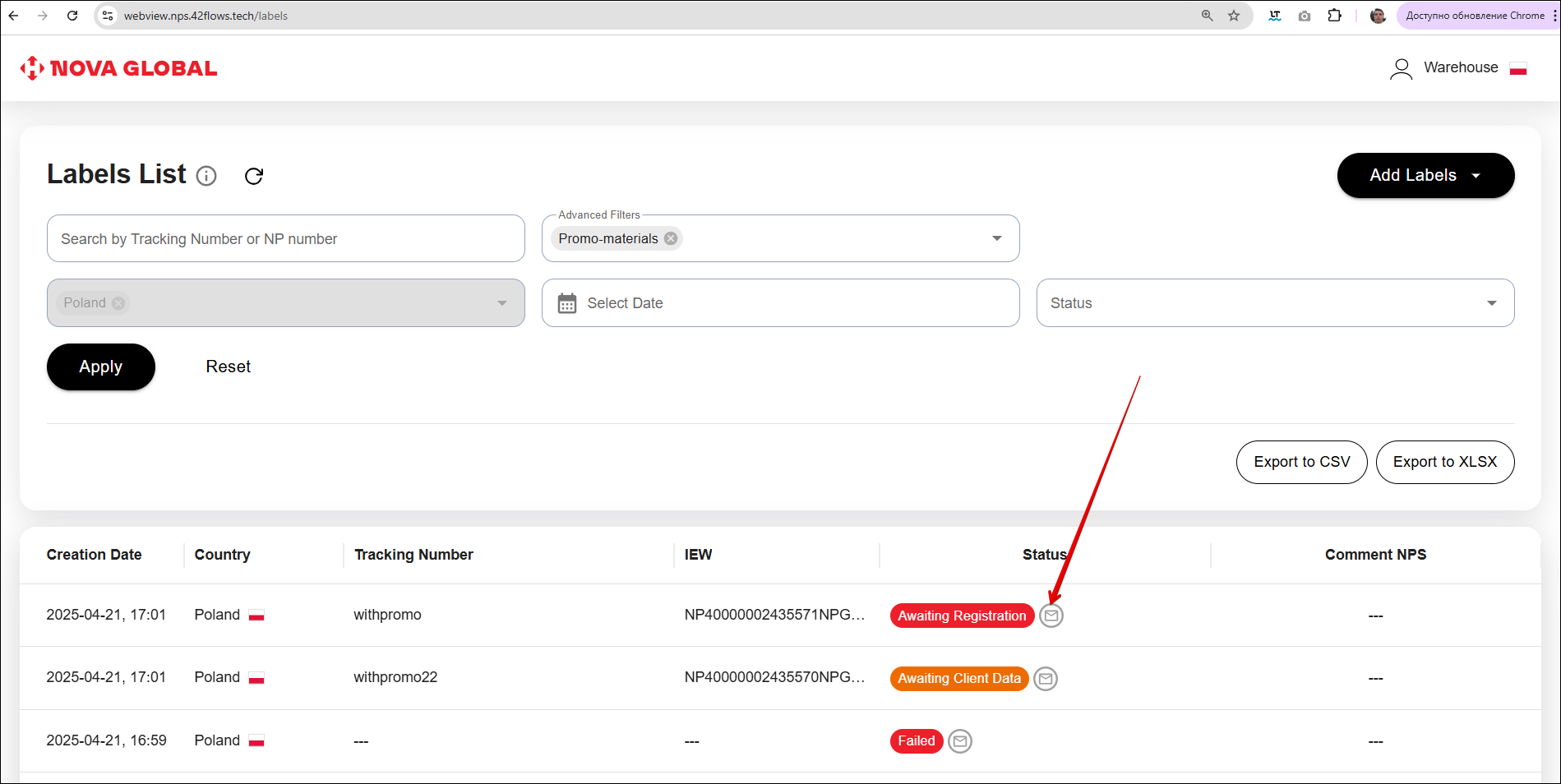
The Promo-materials filter allows you to display envelope parcels to easily distinguish them from regular parcels. Tick the Promo-materials checkbox and click Apply.
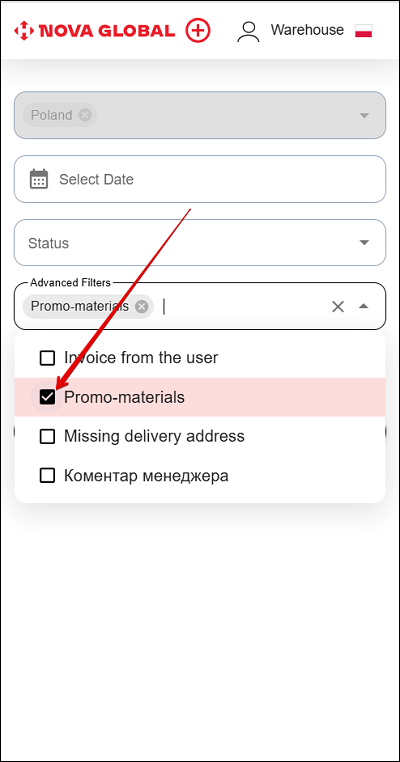
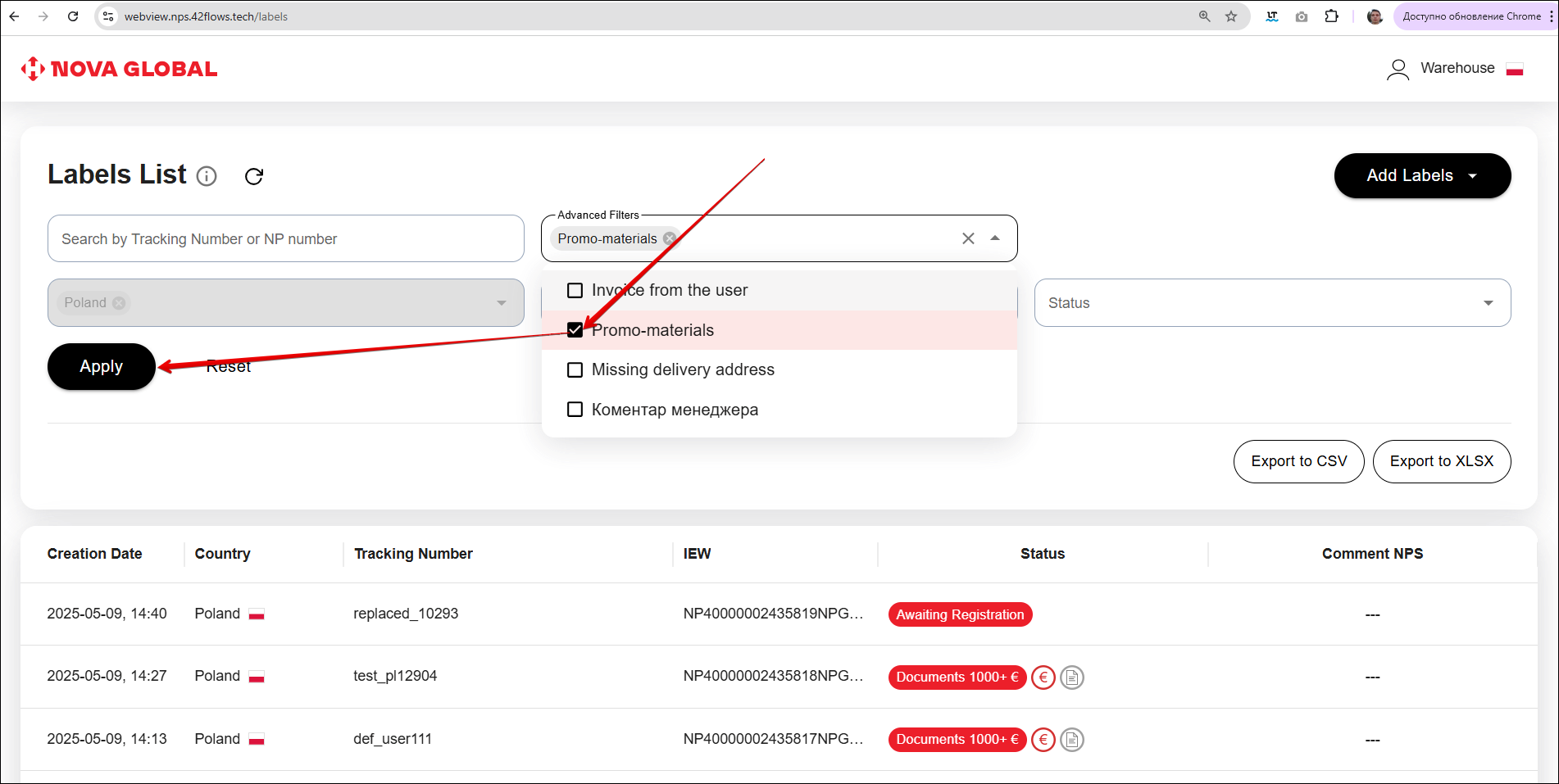
In the list of parcels, a visual mark is displayed for them - a grey envelope icon.
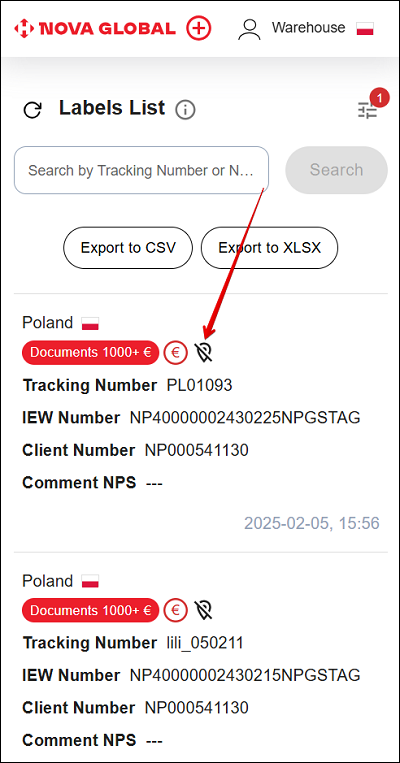
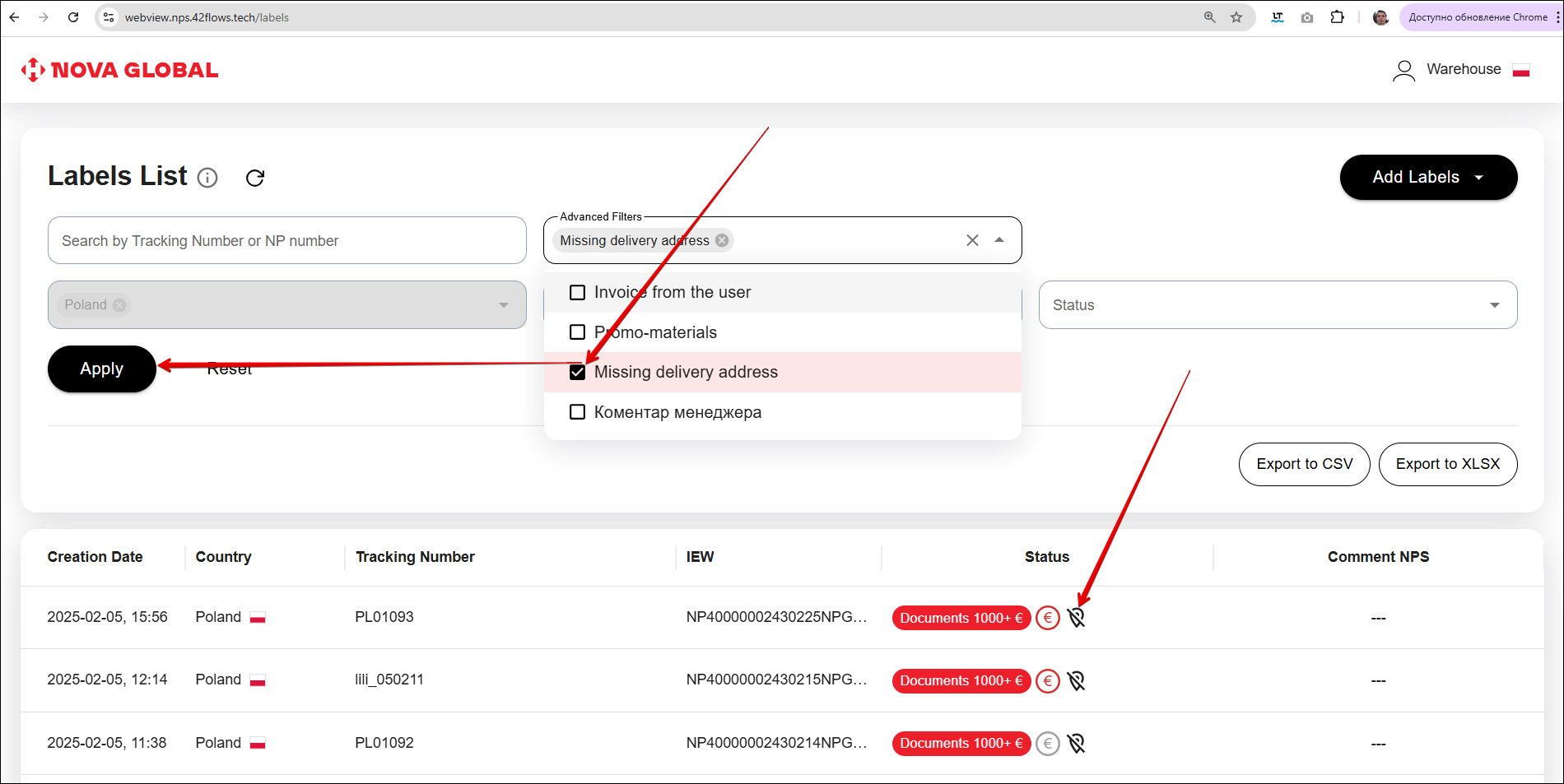
Filter for missing delivery address
Ticking the Missing receiving address checkbox allows you to show parcels without an address.
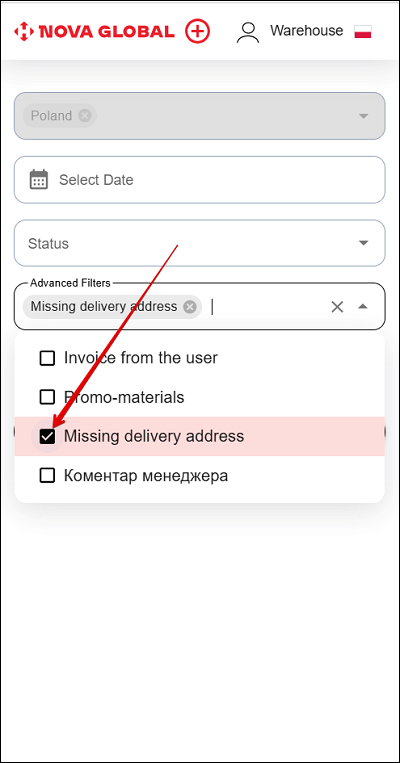
For such parcels, a special icon will appear next to the status.
Filter Manager's comment
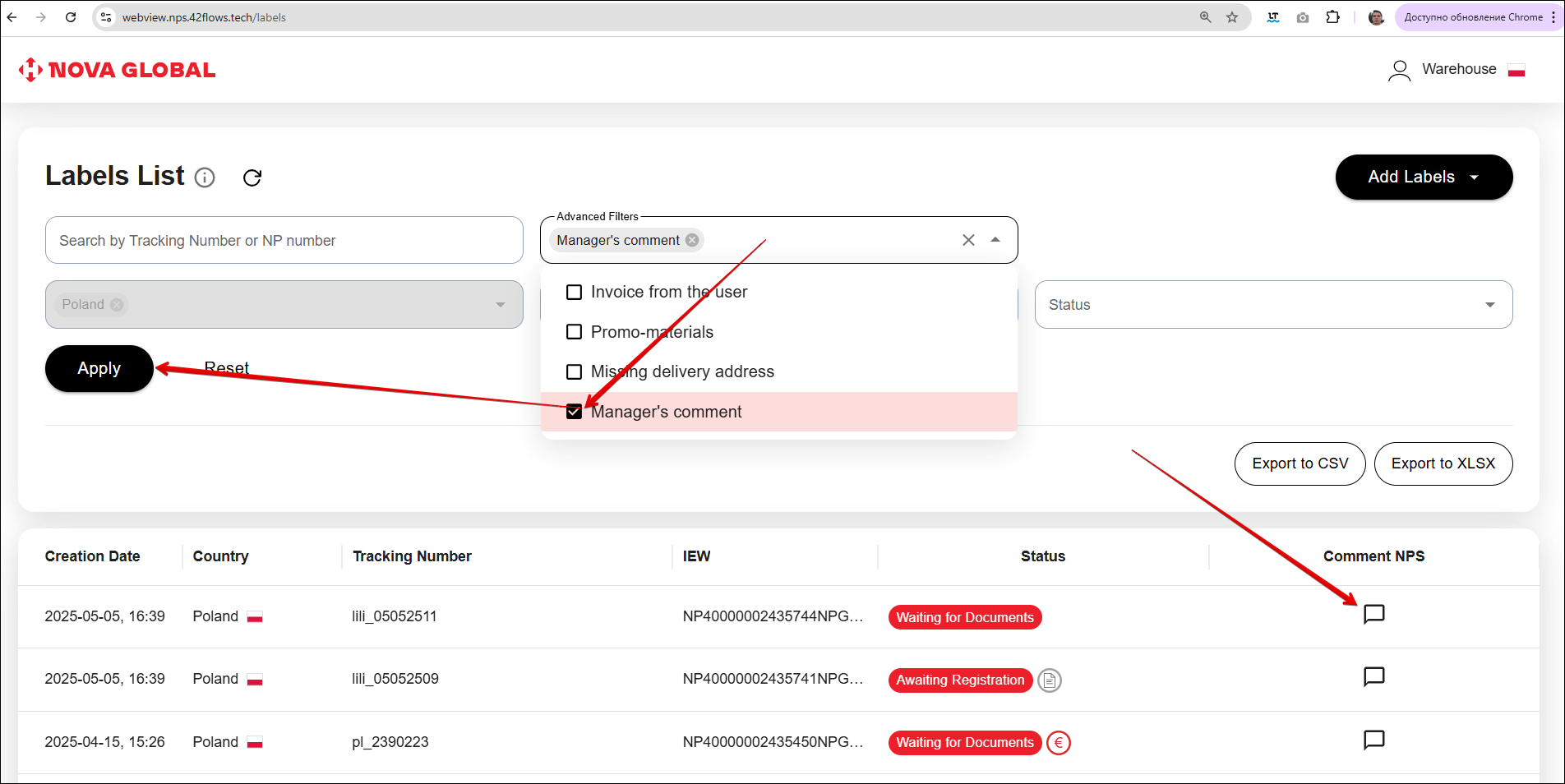
By checking the Manager's comment box, you can display the parcels that contain a manager's comment.
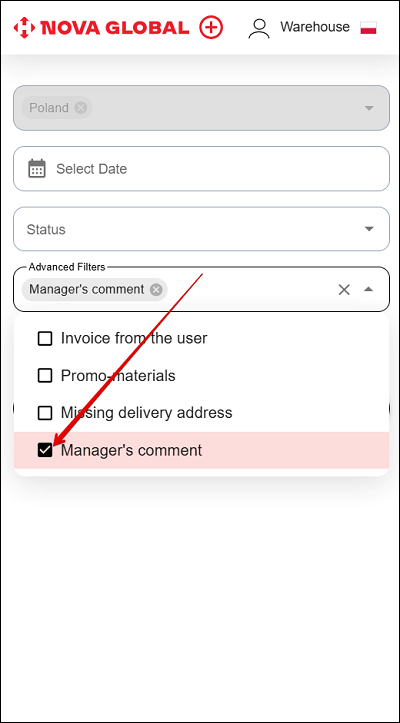
In the mobile version, the manager's comment is shown in the Comment NPS field in the label list. If there is no comment, --- is displayed. On the label card page, if there is no comment, No Comment is shown.
Desktop version
In the desktop version, the comment icon is displayed in the Comment NPS column.
Export label
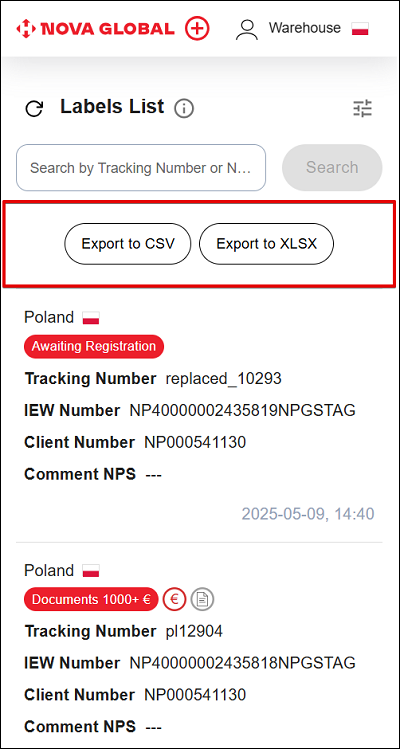
To export labels as .csv or .xlsx files, click the corresponding Export To CSV or Export To XLSX button.
Labels List
The label list contains individual cards with detailed information about each label.
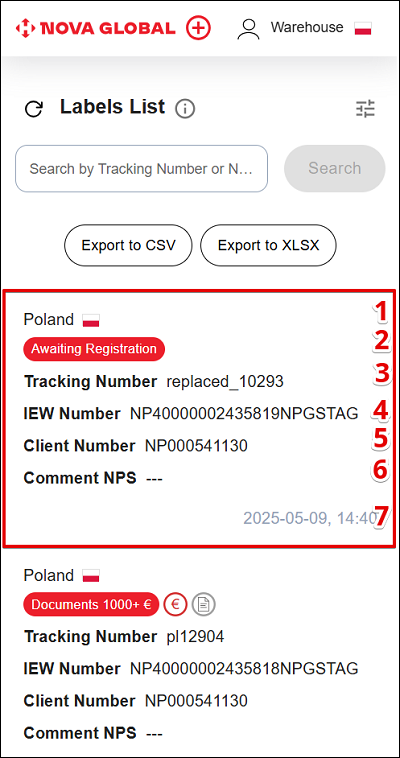
The label card contains the following information:
| № | Data | Description |
|---|---|---|
| 1 | Country | The name of the destination country cannot be changed, it is assigned by third-party services |
| 2 | Status | Indicates the status of the label at the time of scanning |
| 3 | Tracking Number | Parcel tracking number assigned by third-party services |
| 4 | IEW Number | Demonstrates a numbered shipping document for the carriage of each individual international express shipment |
| 5 | Client Number | Unique customer number in the system |
| 6 | Comment NPS | A comment from the NPS manager |
| 7 | Date and time of scanning | Shows the date and time of the scan at the bottom right of the card. The value has no separate caption |
Desktop version
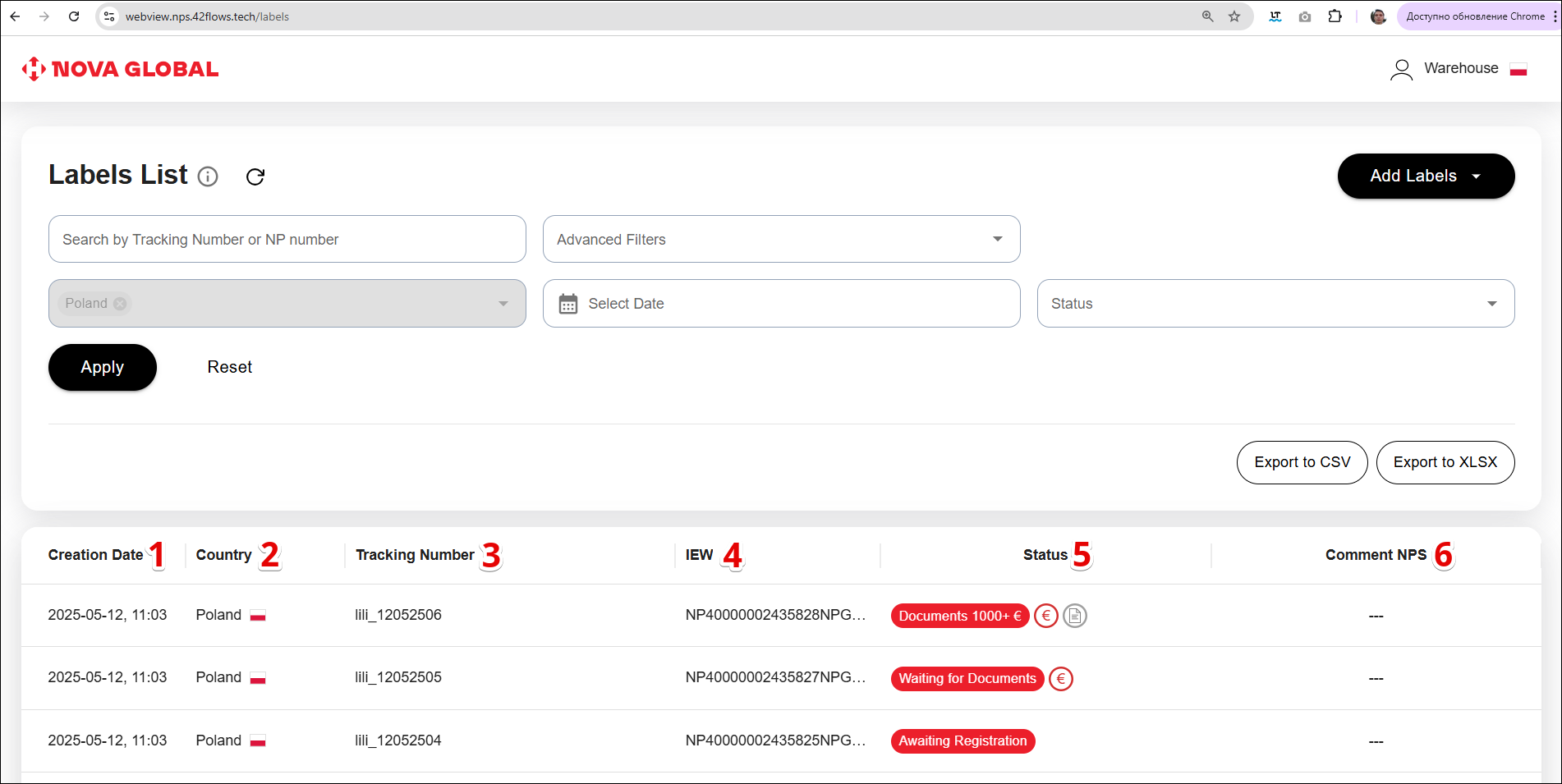
In the desktop version, the label list is a table with detailed information. The data is organized in separate columns:
| № | Column | Description |
|---|---|---|
| 1 | Creation Date | Shows the date when the scan was performed |
| 2 | Country | The name of the destination country cannot be changed, it is assigned by third-party services |
| 3 | Tracking Number | Parcel tracking number assigned by third-party services |
| 4 | IEW | An international express waybill (hereinafter referred to as the IER) is a numbered shipping document that is a contract for the carriage of each individual international express shipment and contains information about the Sender, the Consignee, the contents and weight of the international express shipment and the cost of delivery. |
| 5 | Status | Indicates the current status of the label at the time of scanning |
| 6 | Comment NPS | Contains a comment from the manager NPS |
The list shows every label image that was uploaded and saved after the first scan. On mobile these are cards, and on desktop they are table rows.
The label list includes a list of labels and parcels:
- The label with the recognized data on it;
- Label - a saved image, for which the data recognition process has not been completed yet.
The label list page looks like this in two cases:
- When no parcels have been added yet;
- When the search or filters have not yielded any results.
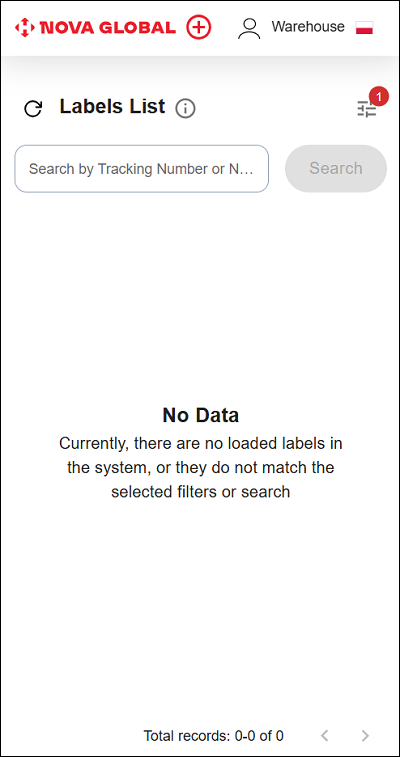
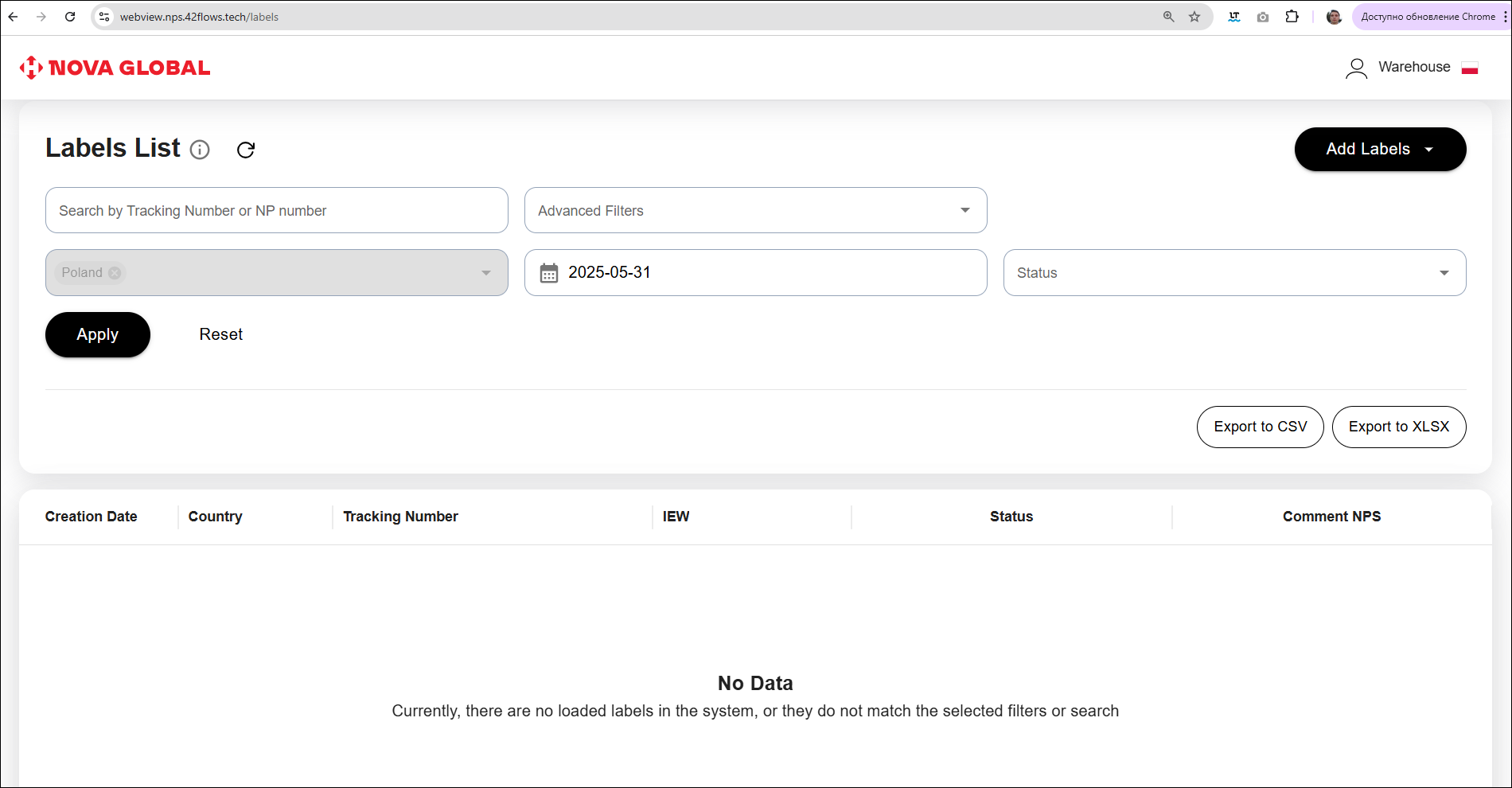
When labels are present, the page shows each label with its status, tracking number, destination country, Comment NPS (if any), and the scan date. On desktop the date column is labeled Creation Date.
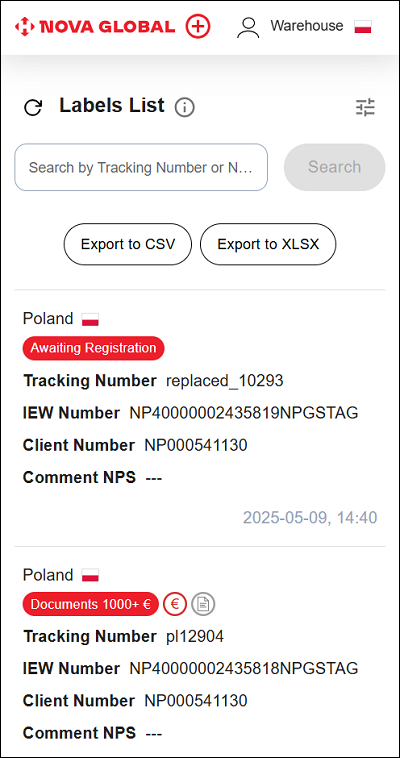
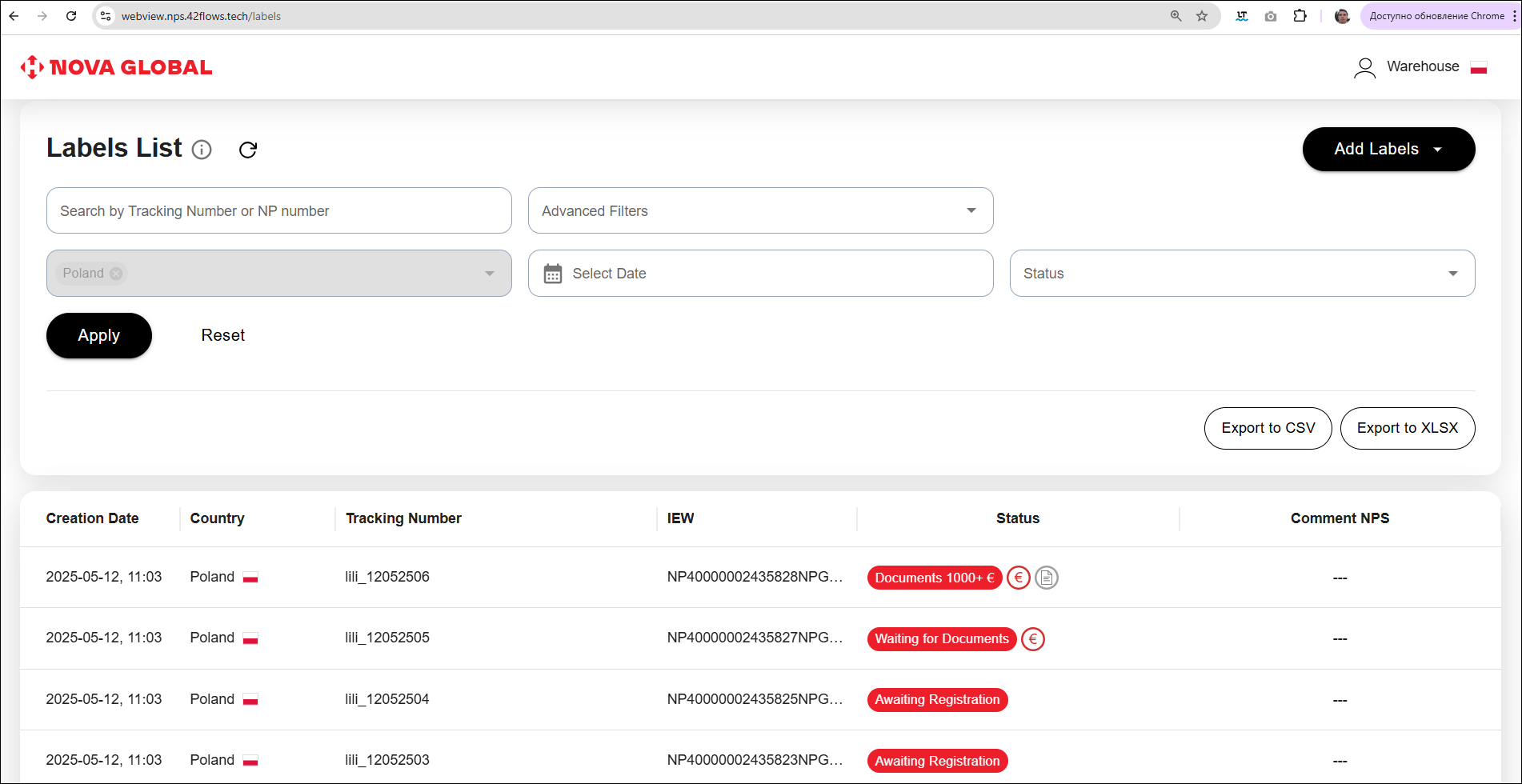
On mobile the label list is shown as cards, and on desktop as a table. Other differences are in how elements are arranged across the screen width